> ## Documentation Index
> Fetch the complete documentation index at: https://docs.cloudeval.ai/llms.txt
> Use this file to discover all available pages before exploring further.
# Hosted MCP with Glama
> Set up a scoped Cloudeval access key for Glama hosting, use browser chat, and understand the Claude and ChatGPT connection options.
Glama can run Cloudeval's MCP server for you. Use its browser chat or connect a compatible client to the hosted server without installing the CLI or Docker on your computer.
**Preview — checked 10 September 2026.** The Cloudeval server is listed and its build and tool discovery have passed. Glama's recognition of the existing custom CLI license is still unresolved and can block installation. Authenticated project/report access through Glama, Claude, and ChatGPT has not yet been verified. If installation is unavailable, use [direct MCP client setup](/agents/mcp-client-setup).
After setup, try this in Glama Chat with Cloudeval selected:
```text theme={null}
List the Cloudeval projects my key can access. Ask me to choose one,
then summarize its latest saved Well-Architected report.
Include the report date and any missing evidence. Do not start a new review.
```
## What runs where
Your chat client asks for a tool. Glama runs the Cloudeval CLI's MCP process, which uses your Cloudeval key to read permitted account data. Your Cloudeval account and hosted services are still required.
```mermaid theme={null}
flowchart LR
C["Glama Chat or an MCP client"] --> G["Glama-hosted Cloudeval MCP"]
K["Scoped Cloudeval access key"] --> G
G --> A["Cloudeval account"]
A --> R["Permitted projects and saved reports"]
```
The published Glama configuration uses `readonly`. It can inspect existing project context and reports; it does not start new evaluations. Cloud coverage remains [Azure and static AWS CloudFormation evaluation in beta](/trust/supported-clouds-and-iac). Hosting does not add live AWS access or broader IaC support.
## Before you begin
* A Cloudeval account, at least one project you can grant access to, and permission to manage access keys.
* An existing report in that project for the report example.
* A Glama account and a private Cloudeval deployment.
* A hosting plan suitable for ongoing use. The current Glama UI offers one-day ephemeral sandboxes; retaining a stable deployment requires a subscription. [Glama hosting charges](https://glama.ai/mcp/hosting) are separate from Cloudeval charges.
Use a private retained deployment for account data. The **Try in Browser** sandbox has different privacy terms and is not the place to enter a production Cloudeval key.
## Create a scoped Cloudeval key
1. Open [Developer → Access keys](https://cloudeval.ai/app/developer?tab=keys) in Cloudeval.
2. Select **Create auth key** and choose the **MCP Read-only** template.
3. Give it a recognizable name, such as `Glama read-only`.
4. Select the project or projects the assistant should read. At least one project is required.
5. Review the expiry and capabilities. The template defaults to 30 days and includes project, connection, report, download, diagram-export, and MCP access. It does not include billing reads or evaluation runs.
6. Select **Create key**, then copy the one-time secret into your private runtime configuration. You cannot retrieve the raw secret again from the key list.
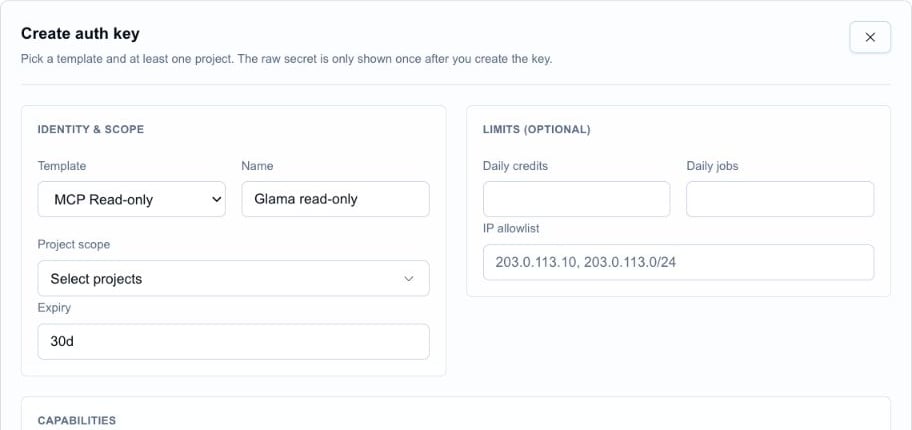 If **Create auth key** is unavailable, ask your Cloudeval administrator for the required permission. An IP allowlist, if used, must permit the hosted server's outbound address, not just your laptop's address.
## Configure the Glama deployment
1. Open [Cloudeval AI on Glama](https://glama.ai/mcp/servers/ganakailabs/cloudeval-cli). Deploy it when installation is available, or open your existing instance under [MCP Deployments](https://glama.ai/settings/mcp/deployments).
2. In the instance's environment section, select **Add Environment Variable** if the row is missing.
3. Set the name to `CLOUDEVAL_ACCESS_KEY` and the value to your own scoped Cloudeval key.
4. Save the configuration and restart the instance if required. Check that its status becomes **started**.
| Credential | Where it goes | What it allows |
| -------------------- | ------------------------------------------------------- | -------------------------------------------------------------------- |
| Cloudeval access key | Glama deployment environment: `CLOUDEVAL_ACCESS_KEY` | The MCP process can access permitted Cloudeval projects and reports. |
| Glama access token | Your external client's private connection configuration | The client can connect to your hosted MCP instance. |
These are different credentials. Neither is an Azure or AWS cloud credential. Do not put either secret in a Dockerfile, repository, chat prompt, or public documentation.
If **Create auth key** is unavailable, ask your Cloudeval administrator for the required permission. An IP allowlist, if used, must permit the hosted server's outbound address, not just your laptop's address.
## Configure the Glama deployment
1. Open [Cloudeval AI on Glama](https://glama.ai/mcp/servers/ganakailabs/cloudeval-cli). Deploy it when installation is available, or open your existing instance under [MCP Deployments](https://glama.ai/settings/mcp/deployments).
2. In the instance's environment section, select **Add Environment Variable** if the row is missing.
3. Set the name to `CLOUDEVAL_ACCESS_KEY` and the value to your own scoped Cloudeval key.
4. Save the configuration and restart the instance if required. Check that its status becomes **started**.
| Credential | Where it goes | What it allows |
| -------------------- | ------------------------------------------------------- | -------------------------------------------------------------------- |
| Cloudeval access key | Glama deployment environment: `CLOUDEVAL_ACCESS_KEY` | The MCP process can access permitted Cloudeval projects and reports. |
| Glama access token | Your external client's private connection configuration | The client can connect to your hosted MCP instance. |
These are different credentials. Neither is an Azure or AWS cloud credential. Do not put either secret in a Dockerfile, repository, chat prompt, or public documentation.
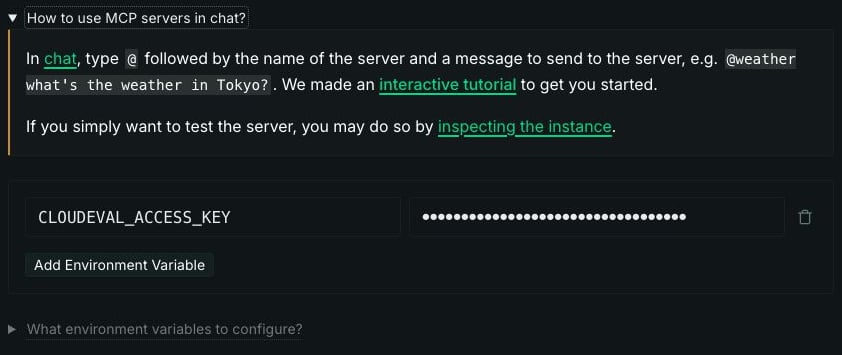 Glama [documents encrypted environment variables and call logging](https://glama.ai/mcp/hosting). Review workspace access and logging before using customer data: tool requests and results pass through Glama and your chosen chat provider.
## Use Glama browser chat
1. Open [Glama Chat](https://glama.ai/chat).
2. Open the composer's **MCP** menu and select **Cloudeval AI**, or type `@` and choose the deployed server. Use its configured instance name if you renamed it.
3. Send the project-and-report prompt near the top of this page.
4. Confirm the selected project, report date, and evidence before relying on the answer.
Glama [documents encrypted environment variables and call logging](https://glama.ai/mcp/hosting). Review workspace access and logging before using customer data: tool requests and results pass through Glama and your chosen chat provider.
## Use Glama browser chat
1. Open [Glama Chat](https://glama.ai/chat).
2. Open the composer's **MCP** menu and select **Cloudeval AI**, or type `@` and choose the deployed server. Use its configured instance name if you renamed it.
3. Send the project-and-report prompt near the top of this page.
4. Confirm the selected project, report date, and evidence before relying on the answer.
 Expected result after successful authentication: the assistant lists projects allowed by your key, asks which to inspect, and reads a saved report. This is the result to verify, not a captured successful run. A tool list or a **started** server alone does not prove account access.
## Connect an external client
Open **Ingress MCP Connection Profile** in your Glama instance. Its **Connection URL** is the MCP endpoint; the public directory listing URL is not an endpoint.
Under **Access Tokens**, create a Glama token for the connection. Open **Install in Client** and follow the instructions for your client. Keep the generated configuration private.
### Claude web and Desktop
1. In Glama's **Install in Client** dialog, choose **Claude**. Choose **Claude Code** only when configuring that separate CLI product.
2. Follow Glama's generated instructions and replace its `` placeholder with your **Glama** token.
3. In Claude, open **Connectors → Add custom connector**, enter the generated connection URL, and complete the connection flow. Team or enterprise workspaces may require an owner to add the connector first.
4. Enable the connector in a conversation and run the verification steps below.
Expected result after successful authentication: the assistant lists projects allowed by your key, asks which to inspect, and reads a saved report. This is the result to verify, not a captured successful run. A tool list or a **started** server alone does not prove account access.
## Connect an external client
Open **Ingress MCP Connection Profile** in your Glama instance. Its **Connection URL** is the MCP endpoint; the public directory listing URL is not an endpoint.
Under **Access Tokens**, create a Glama token for the connection. Open **Install in Client** and follow the instructions for your client. Keep the generated configuration private.
### Claude web and Desktop
1. In Glama's **Install in Client** dialog, choose **Claude**. Choose **Claude Code** only when configuring that separate CLI product.
2. Follow Glama's generated instructions and replace its `` placeholder with your **Glama** token.
3. In Claude, open **Connectors → Add custom connector**, enter the generated connection URL, and complete the connection flow. Team or enterprise workspaces may require an owner to add the connector first.
4. Enable the connector in a conversation and run the verification steps below.
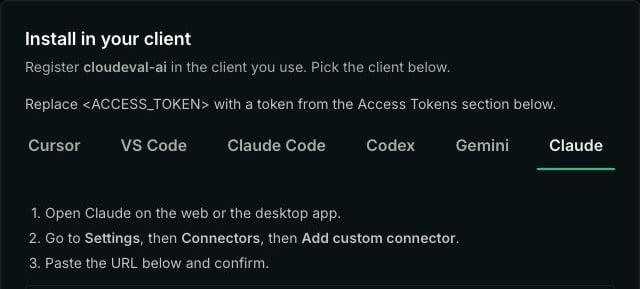 Glama's current Claude preset embeds the Glama token in the connection URL. Treat the entire URL as a secret. Do not share it in screenshots, support messages, or public install buttons. Follow [Claude's current connector instructions](https://support.claude.com/en/articles/11175166-get-started-with-custom-connectors-using-remote-mcp) if menu names differ.
### ChatGPT
ChatGPT supports remote MCP apps through developer mode on eligible accounts and workspaces. See [OpenAI's current setup instructions](https://developers.openai.com/api/docs/guides/developer-mode) for availability, app creation, and supported authentication.
**Cloudeval through Glama remains unverified in ChatGPT.** The inspected Glama install dialog has no ChatGPT preset. A compatible private authentication flow must be established before this can be presented as a working setup. A Cloudeval key or Glama bearer token is not an OAuth client secret. Do not make an account-data endpoint public to bypass authentication.
Once a compatible connection is available, create a custom MCP app with that endpoint, finish authentication, scan the tools, select the app in a conversation, and run the checks below. Until then, use Glama Chat or [direct MCP setup](/agents/mcp-client-setup) in a supported local client.
### Cursor, VS Code, Codex, and Claude Code
Glama provides separate presets for these clients. Use the generated command or configuration for your own instance and Glama token. You do not need a local Docker container when the client connects to Glama's remote endpoint.
## Verify account access
Run these checks in order through your selected client:
1. `capabilities_get`: confirm the server responds and exposes the expected toolset.
2. `identity_get`: confirm authentication succeeds with the intended scoped identity.
3. `projects_list`: confirm only the projects permitted by the key are available.
4. Select one returned project, then use `reports_list` and an appropriate report tool such as `reports_waf` to inspect a saved report.
Stop if the account, scope, or project is unexpected. The discovery check was verified for the published build; the authenticated checks above are still pending for this hosted guide. Screenshots show actual setup controls, not a successful customer-data session.
## Common mistakes
| Symptom | What to check |
| --------------------------------------------- | ------------------------------------------------------------------------------------------------------------------------------------------------------------------------------ |
| Install is disabled | Check the [Glama listing](https://glama.ai/mcp/servers/ganakailabs/cloudeval-cli/score). License recognition remains unresolved; direct CLI/MCP setup is available separately. |
| Environment variables do not match the schema | Add `CLOUDEVAL_ACCESS_KEY` to that instance's environment. A build placeholder cannot authenticate. |
| Server starts, but project tools fail | Check the Cloudeval key, expiry, project scope, permissions, and any IP restrictions. |
| Billing tools return permission errors | MCP Read-only does not grant `billing:read`; omit billing tools unless you deliberately grant the needed access. |
| The external client cannot connect | Use the instance's MCP endpoint and Glama authentication, not its directory URL or the Cloudeval account key. |
| The endpoint stops working later | Check whether an ephemeral instance expired, the deployment stopped, or a key/token was revoked. |
| Session or config tools show unfamiliar data | They refer to the hosted container's local state, not your laptop's CLI history. |
## Rotate or revoke access
Create a replacement scoped key in Cloudeval, update the Glama environment, restart and verify the connection, then revoke the old key from **Developer → Access keys**. Revoke the old Glama token separately if you are replacing the external client's connection. Removing a connector from a chat client does not revoke its Cloudeval key.
## Related pages
* [Direct MCP client setup](/agents/mcp-client-setup)
* [Agent behavior and automation safety](/agents/automation-rules)
* [Data handling and AI boundaries](/trust/data-and-ai)
* [Supported clouds and IaC](/trust/supported-clouds-and-iac)
Glama's current Claude preset embeds the Glama token in the connection URL. Treat the entire URL as a secret. Do not share it in screenshots, support messages, or public install buttons. Follow [Claude's current connector instructions](https://support.claude.com/en/articles/11175166-get-started-with-custom-connectors-using-remote-mcp) if menu names differ.
### ChatGPT
ChatGPT supports remote MCP apps through developer mode on eligible accounts and workspaces. See [OpenAI's current setup instructions](https://developers.openai.com/api/docs/guides/developer-mode) for availability, app creation, and supported authentication.
**Cloudeval through Glama remains unverified in ChatGPT.** The inspected Glama install dialog has no ChatGPT preset. A compatible private authentication flow must be established before this can be presented as a working setup. A Cloudeval key or Glama bearer token is not an OAuth client secret. Do not make an account-data endpoint public to bypass authentication.
Once a compatible connection is available, create a custom MCP app with that endpoint, finish authentication, scan the tools, select the app in a conversation, and run the checks below. Until then, use Glama Chat or [direct MCP setup](/agents/mcp-client-setup) in a supported local client.
### Cursor, VS Code, Codex, and Claude Code
Glama provides separate presets for these clients. Use the generated command or configuration for your own instance and Glama token. You do not need a local Docker container when the client connects to Glama's remote endpoint.
## Verify account access
Run these checks in order through your selected client:
1. `capabilities_get`: confirm the server responds and exposes the expected toolset.
2. `identity_get`: confirm authentication succeeds with the intended scoped identity.
3. `projects_list`: confirm only the projects permitted by the key are available.
4. Select one returned project, then use `reports_list` and an appropriate report tool such as `reports_waf` to inspect a saved report.
Stop if the account, scope, or project is unexpected. The discovery check was verified for the published build; the authenticated checks above are still pending for this hosted guide. Screenshots show actual setup controls, not a successful customer-data session.
## Common mistakes
| Symptom | What to check |
| --------------------------------------------- | ------------------------------------------------------------------------------------------------------------------------------------------------------------------------------ |
| Install is disabled | Check the [Glama listing](https://glama.ai/mcp/servers/ganakailabs/cloudeval-cli/score). License recognition remains unresolved; direct CLI/MCP setup is available separately. |
| Environment variables do not match the schema | Add `CLOUDEVAL_ACCESS_KEY` to that instance's environment. A build placeholder cannot authenticate. |
| Server starts, but project tools fail | Check the Cloudeval key, expiry, project scope, permissions, and any IP restrictions. |
| Billing tools return permission errors | MCP Read-only does not grant `billing:read`; omit billing tools unless you deliberately grant the needed access. |
| The external client cannot connect | Use the instance's MCP endpoint and Glama authentication, not its directory URL or the Cloudeval account key. |
| The endpoint stops working later | Check whether an ephemeral instance expired, the deployment stopped, or a key/token was revoked. |
| Session or config tools show unfamiliar data | They refer to the hosted container's local state, not your laptop's CLI history. |
## Rotate or revoke access
Create a replacement scoped key in Cloudeval, update the Glama environment, restart and verify the connection, then revoke the old key from **Developer → Access keys**. Revoke the old Glama token separately if you are replacing the external client's connection. Removing a connector from a chat client does not revoke its Cloudeval key.
## Related pages
* [Direct MCP client setup](/agents/mcp-client-setup)
* [Agent behavior and automation safety](/agents/automation-rules)
* [Data handling and AI boundaries](/trust/data-and-ai)
* [Supported clouds and IaC](/trust/supported-clouds-and-iac)