> ## Documentation Index
> Fetch the complete documentation index at: https://docs.cloudeval.ai/llms.txt
> Use this file to discover all available pages before exploring further.
# Diagrams and workspace views
> Understand architecture diagrams, dependency diagrams, code context, and shareable diagram views in CloudEval.
Diagrams help you move from raw infrastructure data to a view that people can discuss. Use them when you need to explain resource shape, dependency paths, and review context quickly.
## Architecture view
Use the **architecture view** when you want the broad shape of a project:
* resource groups and major resources
* service boundaries
* topology and layout
* resources that need architectural review
This is usually the best first diagram for stakeholders because it answers "what exists?" before it asks "what depends on what?"
## Dependency view
Use the **dependency view** when the review depends on relationships:
* upstream and downstream resources
* dependency paths that affect risk or blast radius
* resource chains that make a design harder to change
* differences between expected and actual topology
Dependency views are most useful during engineering review, incident follow-up, or pre-deployment checks.
## Code and diagram context
For IaC-backed projects, diagrams are strongest when they stay close to the source files. Use the workspace editor to compare:
* the selected resource in the diagram
* the source template or generated ARM JSON
* report findings attached to the same project
* the latest project status
That context matters because the right fix may live in the code, not in the diagram.
## Diagram markup
Use drawing tools when you need to explain a path, proposed change, or review question in the diagram itself.
## AI-assisted diagram review
Use diagram context with an assistant when the question depends on multiple resources or relationships.
* Ask about selected resources instead of describing them from memory.
* Use the visible relationship path as the grounding context.
* Keep the diagram open while reviewing the generated explanation.
## Sharing and embedding
Diagrams can support review outside the core workspace when the project is appropriate to share.
* Use **share links** for read-only review.
* Use **embed links** when the diagram belongs inside another internal surface.
* Review the project content before publishing a public or broad internal view.
Shared and embedded views should be treated as read-only communication surfaces, not editing modes.
## What to avoid
* Do not assume a diagram is current if the project has not synced or reports have not rerun.
* Do not use a public share view when private graph data is required.
* Do not treat architecture and dependency diagrams as interchangeable; they answer different questions.
## Next step
Use [Projects](/concepts/projects) to understand the workspace model, or [Headless diagram image downloads](/reference/headless-diagram-image-downloads) when an agent or CI job needs diagram image bytes directly.
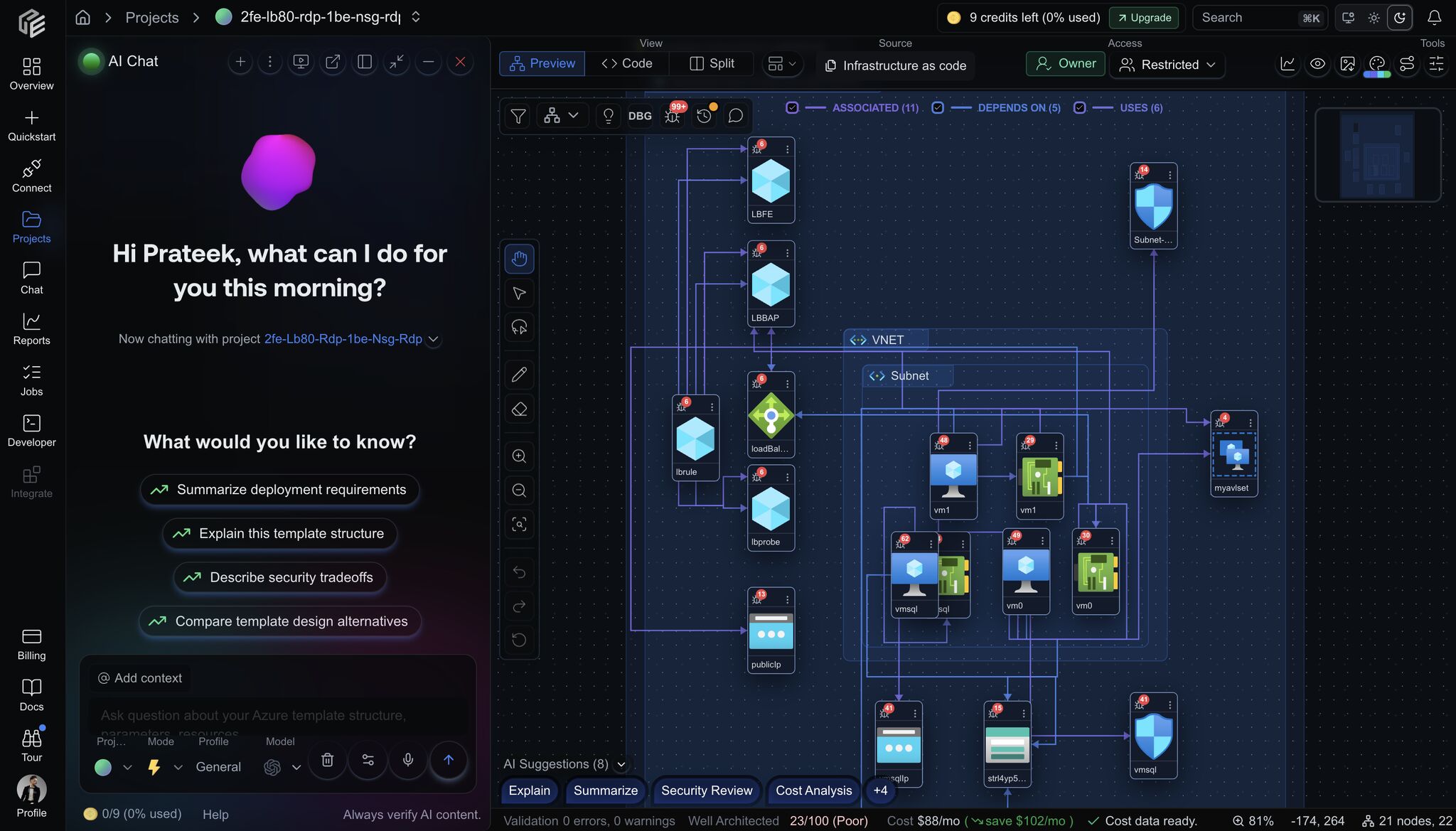 ## Dependency view
Use the **dependency view** when the review depends on relationships:
* upstream and downstream resources
* dependency paths that affect risk or blast radius
* resource chains that make a design harder to change
* differences between expected and actual topology
Dependency views are most useful during engineering review, incident follow-up, or pre-deployment checks.
## Dependency view
Use the **dependency view** when the review depends on relationships:
* upstream and downstream resources
* dependency paths that affect risk or blast radius
* resource chains that make a design harder to change
* differences between expected and actual topology
Dependency views are most useful during engineering review, incident follow-up, or pre-deployment checks.
 ## Code and diagram context
For IaC-backed projects, diagrams are strongest when they stay close to the source files. Use the workspace editor to compare:
* the selected resource in the diagram
* the source template or generated ARM JSON
* report findings attached to the same project
* the latest project status
That context matters because the right fix may live in the code, not in the diagram.
## Code and diagram context
For IaC-backed projects, diagrams are strongest when they stay close to the source files. Use the workspace editor to compare:
* the selected resource in the diagram
* the source template or generated ARM JSON
* report findings attached to the same project
* the latest project status
That context matters because the right fix may live in the code, not in the diagram.
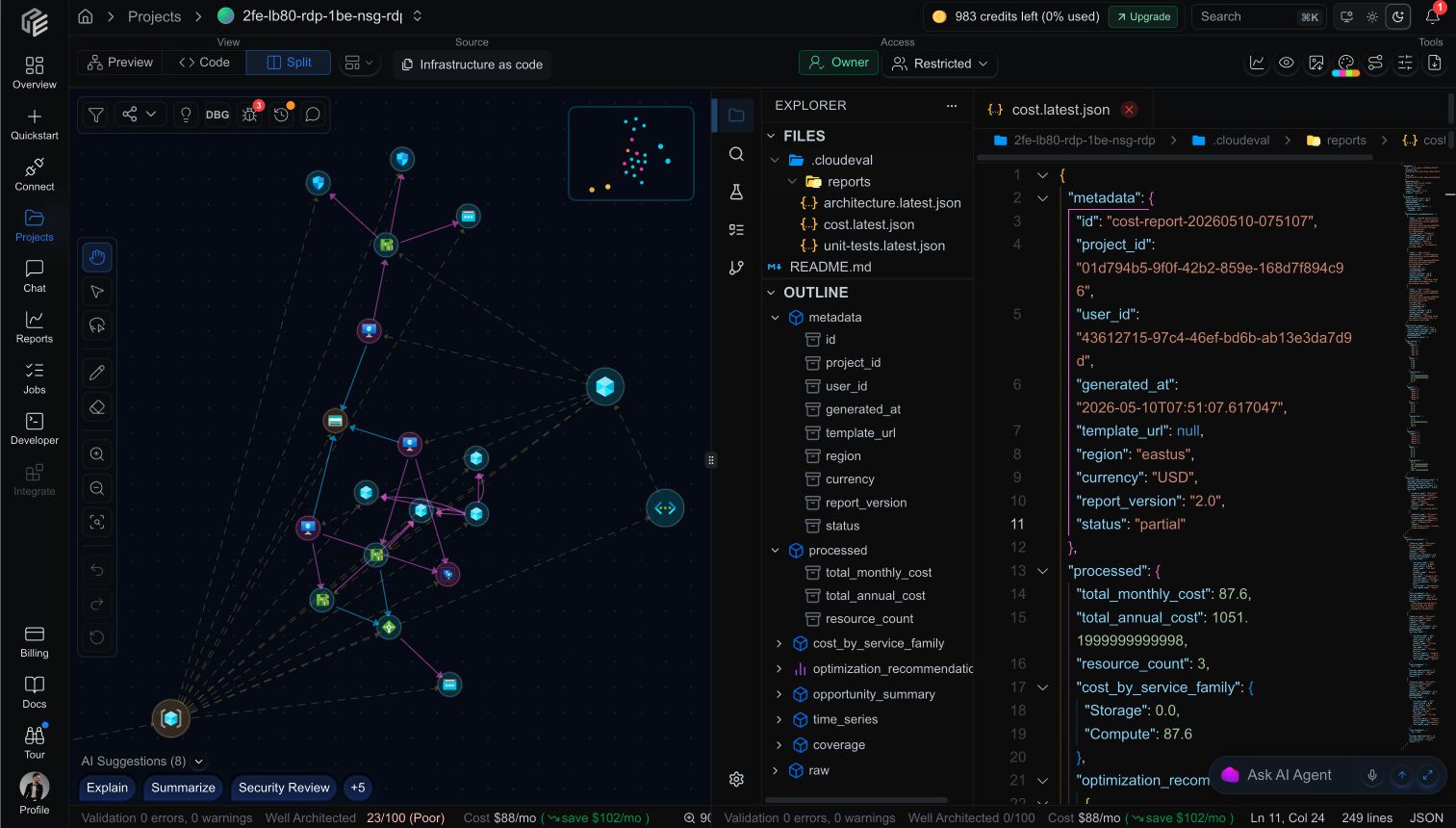 ## Diagram markup
Use drawing tools when you need to explain a path, proposed change, or review question in the diagram itself.
## Diagram markup
Use drawing tools when you need to explain a path, proposed change, or review question in the diagram itself.
 ## AI-assisted diagram review
Use diagram context with an assistant when the question depends on multiple resources or relationships.
* Ask about selected resources instead of describing them from memory.
* Use the visible relationship path as the grounding context.
* Keep the diagram open while reviewing the generated explanation.
## AI-assisted diagram review
Use diagram context with an assistant when the question depends on multiple resources or relationships.
* Ask about selected resources instead of describing them from memory.
* Use the visible relationship path as the grounding context.
* Keep the diagram open while reviewing the generated explanation.
 ## Sharing and embedding
Diagrams can support review outside the core workspace when the project is appropriate to share.
* Use **share links** for read-only review.
* Use **embed links** when the diagram belongs inside another internal surface.
* Review the project content before publishing a public or broad internal view.
Shared and embedded views should be treated as read-only communication surfaces, not editing modes.
## Sharing and embedding
Diagrams can support review outside the core workspace when the project is appropriate to share.
* Use **share links** for read-only review.
* Use **embed links** when the diagram belongs inside another internal surface.
* Review the project content before publishing a public or broad internal view.
Shared and embedded views should be treated as read-only communication surfaces, not editing modes.
 ## What to avoid
* Do not assume a diagram is current if the project has not synced or reports have not rerun.
* Do not use a public share view when private graph data is required.
* Do not treat architecture and dependency diagrams as interchangeable; they answer different questions.
## Next step
Use [Projects](/concepts/projects) to understand the workspace model, or [Headless diagram image downloads](/reference/headless-diagram-image-downloads) when an agent or CI job needs diagram image bytes directly.
## What to avoid
* Do not assume a diagram is current if the project has not synced or reports have not rerun.
* Do not use a public share view when private graph data is required.
* Do not treat architecture and dependency diagrams as interchangeable; they answer different questions.
## Next step
Use [Projects](/concepts/projects) to understand the workspace model, or [Headless diagram image downloads](/reference/headless-diagram-image-downloads) when an agent or CI job needs diagram image bytes directly.