> ## Documentation Index
> Fetch the complete documentation index at: https://docs.cloudeval.ai/llms.txt
> Use this file to discover all available pages before exploring further.
# Use the CLI
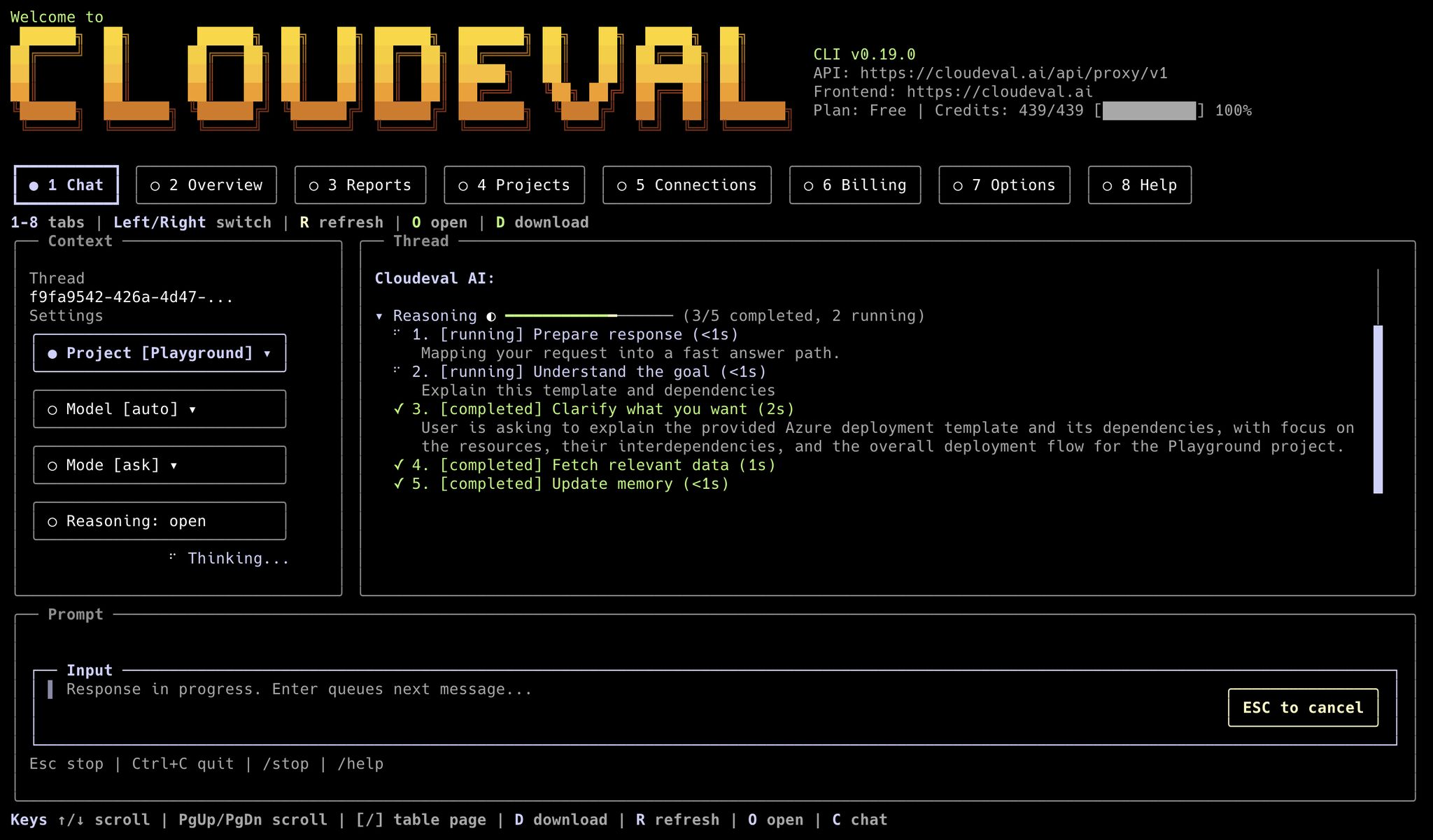
> Install CloudEval CLI, authenticate, create a project, run reports, and ask a grounded question from the terminal.
This is the fastest path if you want CloudEval in a **terminal**, **CI job**, or **internal automation**.
 ## When this path fits
Use the CLI when you want to:
* **Create or inspect projects** without living in the browser
* **Run reports** and capture machine-readable output
* **Ask one grounded question** in a script
* **Open exact app pages** for projects, reports, or billing views
If you mainly need **visual diagram review** or **sharing**, the web app is still the better primary surface.
## When this path fits
Use the CLI when you want to:
* **Create or inspect projects** without living in the browser
* **Run reports** and capture machine-readable output
* **Ask one grounded question** in a script
* **Open exact app pages** for projects, reports, or billing views
If you mainly need **visual diagram review** or **sharing**, the web app is still the better primary surface.
 ## Use the CLI in six steps
Install the npm package on Node.js 20+ machines:
```bash theme={null}
npm install -g @ganakailabs/cloudeval-cli
```
Or install the standalone release binary:
```bash theme={null}
curl -fsSL https://cli.cloudeval.ai/install.sh | bash
```
On Windows or Linux with PowerShell 7+:
```powershell theme={null}
irm https://cli.cloudeval.ai/install.ps1 | iex
```
The bash installer may offer to install shell tab completions for your
login shell (`bash`, `zsh`, or `fish`). To skip that step, run
`CLOUDEVAL_INSTALL_COMPLETION=0 curl -fsSL https://cli.cloudeval.ai/install.sh | bash`.
CloudEval ships these command names:
* `cloudeval`
* `cloud`
* `eva`
Verify the install:
```bash theme={null}
cloudeval --version
eva --version
```
Store local defaults for the **CloudEval service**, **app**, **default project**, and **model**.
Profiles are useful for agents, CI jobs, and machines that work with more
than one environment.
```bash theme={null}
cloudeval setup \
--non-interactive \
--profile quickstart \
--model gpt-5-nano \
--format json
```
Check the profile and local environment:
```bash theme={null}
cloudeval config show --profile quickstart --format json
cloudeval status --profile quickstart --format json
cloudeval doctor --profile quickstart --format json
```
Print the completion script for your shell:
```bash theme={null}
cloudeval completion bash
cloudeval completion zsh
cloudeval completion fish
cloudeval completion powershell
```
Install completion to a standard per-user path:
```bash theme={null}
cloudeval completion install --shell bash
cloudeval completion install --shell zsh
cloudeval completion install --shell fish
cloudeval completion install --shell powershell
```
Remove installed completion:
```bash theme={null}
cloudeval completion uninstall --shell bash
cloudeval completion uninstall --shell zsh
cloudeval completion uninstall --shell fish
cloudeval completion uninstall --shell powershell
```
Choose the login mode based on where the CLI is running.
Use normal browser login when you are running the CLI on your own laptop
or desktop and the terminal can open a browser on the same machine.
```bash theme={null}
cloudeval login
cloudeval auth status
```
Use headless login when the CLI is running somewhere that cannot open a
usable browser window, such as an SSH session, remote server, container,
or CI-like terminal.
The command prints a browser URL and device code. Open that URL in any
browser, approve the session, then return to the terminal.
```bash theme={null}
cloudeval login --headless
cloudeval auth status
```
Headless login is not a different account type. It is only a login flow for
terminals that cannot complete the normal browser handoff.
If your source of truth is Bicep, compile it to ARM JSON first. The CLI's strongest IaC import path today is ARM JSON.
Download an Azure Quickstart template, then create a project from the
local file:
```bash theme={null}
curl -fsSL \
https://raw.githubusercontent.com/Azure/azure-quickstart-templates/master/quickstarts/microsoft.compute/1vm-2nics-2subnets-1vnet/azuredeploy.json \
-o ./azuredeploy.json
cloudeval projects create \
--template-file ./azuredeploy.json \
--name "Azure quickstart import" \
--provider azure \
--profile quickstart \
--format json \
--output ./cloudeval-project.json
```
Create a project directly from the Azure Quickstart repository URL:
```bash theme={null}
cloudeval projects create \
--template-url https://github.com/Azure/azure-quickstart-templates/blob/master/quickstarts/microsoft.compute/1vm-2nics-2subnets-1vnet/azuredeploy.json \
--name "Azure quickstart import" \
--provider azure \
--profile quickstart \
--format json \
--output ./cloudeval-project.json
```
Create a project from a folder that contains the visualization source,
linked ARM templates, parameters, and optional `.cloudeval/config.yaml`:
```bash theme={null}
cloudeval projects create \
--workspace-dir ./infra \
--workspace-entry azuredeploy.json \
--name "Nested ARM workspace" \
--provider azure \
--profile quickstart \
--format json \
--output ./cloudeval-project.json
```
If `.cloudeval/config.yaml` is missing, the CLI creates one using the
selected entry and detected parameters file.
Create a Cloud sync project from a least-privilege Azure service
principal and one or more resource-group scopes:
```bash theme={null}
cloudeval projects create \
--cloud-sync \
--azure-tenant-id "$AZURE_TENANT_ID" \
--azure-client-id "$AZURE_CLIENT_ID" \
--azure-client-secret "$AZURE_CLIENT_SECRET" \
--azure-subscription-id "$AZURE_SUBSCRIPTION_ID" \
--resource-group rg-app \
--resource-group rg-network \
--name "Production Cloud sync" \
--profile quickstart \
--format json \
--output ./cloudeval-project.json
```
The JSON response includes the created project and connection metadata. **Capture both IDs** for follow-up commands:
```bash theme={null}
PROJECT_ID=$(jq -r '.data.project.id' ./cloudeval-project.json)
CONNECTION_ID=$(jq -r '.data.connection.id' ./cloudeval-project.json)
cloudeval projects get "$PROJECT_ID" --profile quickstart --format json
cloudeval connections get "$CONNECTION_ID" --profile quickstart --format json
```
`cloudeval projects create` supports four creation sources:
`--template-file`, `--template-url`, `--workspace-dir`, and
`--cloud-sync`. Use exactly one source per command.
```bash theme={null}
cloudeval reports run \
--project "$PROJECT_ID" \
--type all \
--wait \
--profile quickstart \
--format json
```
Fetch a **human-readable cost summary**:
```bash theme={null}
cloudeval reports cost \
--project "$PROJECT_ID" \
--profile quickstart \
--format markdown
```
Fetch a **human-readable architecture summary**:
```bash theme={null}
cloudeval reports waf \
--project "$PROJECT_ID" \
--profile quickstart \
--format markdown
```
Download **saved report payloads** for another tool or CI artifact:
```bash theme={null}
cloudeval reports download \
--project "$PROJECT_ID" \
--type all \
--view parsed \
--output ./reports \
--profile quickstart \
--format json \
--non-interactive
```
For nested ARM workspace projects, these report commands use the resolved
stack generated from `.cloudeval/config.yaml`. For Cloud sync projects,
they use the latest synced Azure snapshot.
Open the diagram:
```bash theme={null}
cloudeval open project "$PROJECT_ID" \
--view preview \
--layout architecture \
--print-url \
--no-open
```
Ask one grounded question:
```bash theme={null}
cloudeval ask "Summarize the top cost and architecture risks in this project" \
--project "$PROJECT_ID" \
--profile quickstart \
--format json \
--non-interactive
```
Use `ask` when you want **one answer back**. Use `chat` when you want an **ongoing interactive session**.
## CLI examples for workspace and Cloud sync projects
### Nested ARM workspace
```bash theme={null}
cloudeval projects create \
--workspace-dir ./infra \
--workspace-entry azuredeploy.json \
--name "Nested ARM workspace" \
--provider azure \
--profile quickstart \
--format json \
--output ./cloudeval-project.json
PROJECT_ID=$(jq -r '.data.project.id' ./cloudeval-project.json)
cloudeval projects get "$PROJECT_ID" \
--profile quickstart \
--format json
cloudeval projects graph "$PROJECT_ID" \
--profile quickstart \
--format json \
--non-interactive
cloudeval reports run \
--project "$PROJECT_ID" \
--type all \
--wait \
--profile quickstart \
--format json
cloudeval reports download \
--project "$PROJECT_ID" \
--type all \
--view parsed \
--output ./cloudeval-reports \
--profile quickstart \
--format json \
--non-interactive
```
You can still validate a single local ARM template directly before importing
the workspace:
```bash theme={null}
cloudeval validate template \
--template-file ./azuredeploy.json \
--parameters-file ./azuredeploy.parameters.json \
--details \
--wait \
--profile quickstart \
--format json \
--non-interactive
```
### Cloud sync project
```bash theme={null}
cloudeval projects create \
--cloud-sync \
--azure-tenant-id "$AZURE_TENANT_ID" \
--azure-client-id "$AZURE_CLIENT_ID" \
--azure-client-secret "$AZURE_CLIENT_SECRET" \
--azure-subscription-id "$AZURE_SUBSCRIPTION_ID" \
--resource-group rg-app \
--name "Production Cloud sync" \
--profile quickstart \
--format json \
--output ./cloudeval-project.json
PROJECT_ID=$(jq -r '.data.project.id' ./cloudeval-project.json)
cloudeval projects get "$PROJECT_ID" \
--profile quickstart \
--format json
cloudeval projects graph sync-runs "$PROJECT_ID" \
--profile quickstart \
--format json \
--non-interactive
cloudeval reports run \
--project "$PROJECT_ID" \
--type all \
--wait \
--profile quickstart \
--format json
cloudeval reports cost \
--project "$PROJECT_ID" \
--profile quickstart \
--format markdown
cloudeval reports waf \
--project "$PROJECT_ID" \
--profile quickstart \
--format markdown
```
## Inspect models and sessions
List CloudEval-supported models and set a default:
```bash theme={null}
cloudeval models list --profile quickstart --format json
cloudeval models default set gpt-5-nano --profile quickstart --format json
```
After an `ask` run, inspect local session history:
```bash theme={null}
cloudeval sessions list --profile quickstart --format json
cloudeval sessions get --profile quickstart --format json
```
You can also search, rename, and resume recent work:
```bash theme={null}
cloudeval sessions search "cost risk" --profile quickstart --format json
cloudeval sessions rename "Cost and architecture review" --profile quickstart --format json
cloudeval chat --resume "Cost and architecture review" --profile quickstart
```
For repeatable one-shot follow-ups, reuse a thread ID:
```bash theme={null}
cloudeval ask "What changed since the previous report?" \
--thread \
--project "$PROJECT_ID" \
--profile quickstart \
--format json \
--non-interactive
```
## Run CloudEval as an MCP server
If your agent framework already supports MCP, you can expose CloudEval as a
local tool server instead of calling one CLI command at a time.
```bash theme={null}
cloudeval mcp status --format json
cloudeval doctor --mcp --format json
codex mcp add cloudeval -- cloudeval mcp serve
```
CloudEval can generate setup instructions for common MCP clients:
```bash theme={null}
cloudeval mcp setup codex --dry-run
cloudeval mcp setup claude --dry-run
cloudeval mcp setup cursor --dry-run
cloudeval mcp setup generic --dry-run --toolset readonly --format json
```
Use a focused toolset when an agent only needs part of the CloudEval surface:
```bash theme={null}
cloudeval mcp serve --toolset readonly
cloudeval mcp serve --toolset reports
cloudeval mcp serve --toolset billing
```
For custom MCP clients, the equivalent JSON shape is:
```json theme={null}
{
"mcpServers": {
"cloudeval": {
"command": "cloudeval",
"args": ["mcp", "serve"]
}
}
}
```
For Ollama-powered agents, add this CloudEval MCP entry to the MCP-capable
agent host that Ollama launches. The CloudEval server still runs over standard
stdio MCP.
Use stored `cloudeval login` auth, stored `cloudeval login --headless` auth,
or `--machine`. Run login before starting `mcp serve`; stdin is reserved for
MCP protocol messages.
MCP clients that support richer discovery can also see CloudEval resources and
prompt templates for capabilities, projects, billing summaries, report review,
cost review, architecture review, and billing review.
## Safe defaults for automation
* Run `cloudeval capabilities --format json` before relying on command names in automation.
* Run `cloudeval doctor --format json` before relying on a local install in automation.
* Run `cloudeval doctor --mcp --format json` before relying on MCP setup.
* Prefer `--format json` for scripts.
* Prefer `--non-interactive` in CI or agent workflows.
* Prefer `--profile ` when multiple agents or environments share one machine.
* Prefer `--print-url --no-open` when a command can generate a CloudEval app link.
* Use `cloudeval login --headless` when you are not on a workstation with a usable browser.
* Use `--machine` only when service-principal machine authentication is configured.
## Next step
Use [CLI overview](/reference/cli-overview) for the command model, [CLI command reference](/reference/cli-command-reference) for the current surface area, or [Automate evaluations with the CLI](/workflows/automate-evaluations-with-the-cli) for repeatable workflows.
## Use the CLI in six steps
Install the npm package on Node.js 20+ machines:
```bash theme={null}
npm install -g @ganakailabs/cloudeval-cli
```
Or install the standalone release binary:
```bash theme={null}
curl -fsSL https://cli.cloudeval.ai/install.sh | bash
```
On Windows or Linux with PowerShell 7+:
```powershell theme={null}
irm https://cli.cloudeval.ai/install.ps1 | iex
```
The bash installer may offer to install shell tab completions for your
login shell (`bash`, `zsh`, or `fish`). To skip that step, run
`CLOUDEVAL_INSTALL_COMPLETION=0 curl -fsSL https://cli.cloudeval.ai/install.sh | bash`.
CloudEval ships these command names:
* `cloudeval`
* `cloud`
* `eva`
Verify the install:
```bash theme={null}
cloudeval --version
eva --version
```
Store local defaults for the **CloudEval service**, **app**, **default project**, and **model**.
Profiles are useful for agents, CI jobs, and machines that work with more
than one environment.
```bash theme={null}
cloudeval setup \
--non-interactive \
--profile quickstart \
--model gpt-5-nano \
--format json
```
Check the profile and local environment:
```bash theme={null}
cloudeval config show --profile quickstart --format json
cloudeval status --profile quickstart --format json
cloudeval doctor --profile quickstart --format json
```
Print the completion script for your shell:
```bash theme={null}
cloudeval completion bash
cloudeval completion zsh
cloudeval completion fish
cloudeval completion powershell
```
Install completion to a standard per-user path:
```bash theme={null}
cloudeval completion install --shell bash
cloudeval completion install --shell zsh
cloudeval completion install --shell fish
cloudeval completion install --shell powershell
```
Remove installed completion:
```bash theme={null}
cloudeval completion uninstall --shell bash
cloudeval completion uninstall --shell zsh
cloudeval completion uninstall --shell fish
cloudeval completion uninstall --shell powershell
```
Choose the login mode based on where the CLI is running.
Use normal browser login when you are running the CLI on your own laptop
or desktop and the terminal can open a browser on the same machine.
```bash theme={null}
cloudeval login
cloudeval auth status
```
Use headless login when the CLI is running somewhere that cannot open a
usable browser window, such as an SSH session, remote server, container,
or CI-like terminal.
The command prints a browser URL and device code. Open that URL in any
browser, approve the session, then return to the terminal.
```bash theme={null}
cloudeval login --headless
cloudeval auth status
```
Headless login is not a different account type. It is only a login flow for
terminals that cannot complete the normal browser handoff.
If your source of truth is Bicep, compile it to ARM JSON first. The CLI's strongest IaC import path today is ARM JSON.
Download an Azure Quickstart template, then create a project from the
local file:
```bash theme={null}
curl -fsSL \
https://raw.githubusercontent.com/Azure/azure-quickstart-templates/master/quickstarts/microsoft.compute/1vm-2nics-2subnets-1vnet/azuredeploy.json \
-o ./azuredeploy.json
cloudeval projects create \
--template-file ./azuredeploy.json \
--name "Azure quickstart import" \
--provider azure \
--profile quickstart \
--format json \
--output ./cloudeval-project.json
```
Create a project directly from the Azure Quickstart repository URL:
```bash theme={null}
cloudeval projects create \
--template-url https://github.com/Azure/azure-quickstart-templates/blob/master/quickstarts/microsoft.compute/1vm-2nics-2subnets-1vnet/azuredeploy.json \
--name "Azure quickstart import" \
--provider azure \
--profile quickstart \
--format json \
--output ./cloudeval-project.json
```
Create a project from a folder that contains the visualization source,
linked ARM templates, parameters, and optional `.cloudeval/config.yaml`:
```bash theme={null}
cloudeval projects create \
--workspace-dir ./infra \
--workspace-entry azuredeploy.json \
--name "Nested ARM workspace" \
--provider azure \
--profile quickstart \
--format json \
--output ./cloudeval-project.json
```
If `.cloudeval/config.yaml` is missing, the CLI creates one using the
selected entry and detected parameters file.
Create a Cloud sync project from a least-privilege Azure service
principal and one or more resource-group scopes:
```bash theme={null}
cloudeval projects create \
--cloud-sync \
--azure-tenant-id "$AZURE_TENANT_ID" \
--azure-client-id "$AZURE_CLIENT_ID" \
--azure-client-secret "$AZURE_CLIENT_SECRET" \
--azure-subscription-id "$AZURE_SUBSCRIPTION_ID" \
--resource-group rg-app \
--resource-group rg-network \
--name "Production Cloud sync" \
--profile quickstart \
--format json \
--output ./cloudeval-project.json
```
The JSON response includes the created project and connection metadata. **Capture both IDs** for follow-up commands:
```bash theme={null}
PROJECT_ID=$(jq -r '.data.project.id' ./cloudeval-project.json)
CONNECTION_ID=$(jq -r '.data.connection.id' ./cloudeval-project.json)
cloudeval projects get "$PROJECT_ID" --profile quickstart --format json
cloudeval connections get "$CONNECTION_ID" --profile quickstart --format json
```
`cloudeval projects create` supports four creation sources:
`--template-file`, `--template-url`, `--workspace-dir`, and
`--cloud-sync`. Use exactly one source per command.
```bash theme={null}
cloudeval reports run \
--project "$PROJECT_ID" \
--type all \
--wait \
--profile quickstart \
--format json
```
Fetch a **human-readable cost summary**:
```bash theme={null}
cloudeval reports cost \
--project "$PROJECT_ID" \
--profile quickstart \
--format markdown
```
Fetch a **human-readable architecture summary**:
```bash theme={null}
cloudeval reports waf \
--project "$PROJECT_ID" \
--profile quickstart \
--format markdown
```
Download **saved report payloads** for another tool or CI artifact:
```bash theme={null}
cloudeval reports download \
--project "$PROJECT_ID" \
--type all \
--view parsed \
--output ./reports \
--profile quickstart \
--format json \
--non-interactive
```
For nested ARM workspace projects, these report commands use the resolved
stack generated from `.cloudeval/config.yaml`. For Cloud sync projects,
they use the latest synced Azure snapshot.
Open the diagram:
```bash theme={null}
cloudeval open project "$PROJECT_ID" \
--view preview \
--layout architecture \
--print-url \
--no-open
```
Ask one grounded question:
```bash theme={null}
cloudeval ask "Summarize the top cost and architecture risks in this project" \
--project "$PROJECT_ID" \
--profile quickstart \
--format json \
--non-interactive
```
Use `ask` when you want **one answer back**. Use `chat` when you want an **ongoing interactive session**.
## CLI examples for workspace and Cloud sync projects
### Nested ARM workspace
```bash theme={null}
cloudeval projects create \
--workspace-dir ./infra \
--workspace-entry azuredeploy.json \
--name "Nested ARM workspace" \
--provider azure \
--profile quickstart \
--format json \
--output ./cloudeval-project.json
PROJECT_ID=$(jq -r '.data.project.id' ./cloudeval-project.json)
cloudeval projects get "$PROJECT_ID" \
--profile quickstart \
--format json
cloudeval projects graph "$PROJECT_ID" \
--profile quickstart \
--format json \
--non-interactive
cloudeval reports run \
--project "$PROJECT_ID" \
--type all \
--wait \
--profile quickstart \
--format json
cloudeval reports download \
--project "$PROJECT_ID" \
--type all \
--view parsed \
--output ./cloudeval-reports \
--profile quickstart \
--format json \
--non-interactive
```
You can still validate a single local ARM template directly before importing
the workspace:
```bash theme={null}
cloudeval validate template \
--template-file ./azuredeploy.json \
--parameters-file ./azuredeploy.parameters.json \
--details \
--wait \
--profile quickstart \
--format json \
--non-interactive
```
### Cloud sync project
```bash theme={null}
cloudeval projects create \
--cloud-sync \
--azure-tenant-id "$AZURE_TENANT_ID" \
--azure-client-id "$AZURE_CLIENT_ID" \
--azure-client-secret "$AZURE_CLIENT_SECRET" \
--azure-subscription-id "$AZURE_SUBSCRIPTION_ID" \
--resource-group rg-app \
--name "Production Cloud sync" \
--profile quickstart \
--format json \
--output ./cloudeval-project.json
PROJECT_ID=$(jq -r '.data.project.id' ./cloudeval-project.json)
cloudeval projects get "$PROJECT_ID" \
--profile quickstart \
--format json
cloudeval projects graph sync-runs "$PROJECT_ID" \
--profile quickstart \
--format json \
--non-interactive
cloudeval reports run \
--project "$PROJECT_ID" \
--type all \
--wait \
--profile quickstart \
--format json
cloudeval reports cost \
--project "$PROJECT_ID" \
--profile quickstart \
--format markdown
cloudeval reports waf \
--project "$PROJECT_ID" \
--profile quickstart \
--format markdown
```
## Inspect models and sessions
List CloudEval-supported models and set a default:
```bash theme={null}
cloudeval models list --profile quickstart --format json
cloudeval models default set gpt-5-nano --profile quickstart --format json
```
After an `ask` run, inspect local session history:
```bash theme={null}
cloudeval sessions list --profile quickstart --format json
cloudeval sessions get --profile quickstart --format json
```
You can also search, rename, and resume recent work:
```bash theme={null}
cloudeval sessions search "cost risk" --profile quickstart --format json
cloudeval sessions rename "Cost and architecture review" --profile quickstart --format json
cloudeval chat --resume "Cost and architecture review" --profile quickstart
```
For repeatable one-shot follow-ups, reuse a thread ID:
```bash theme={null}
cloudeval ask "What changed since the previous report?" \
--thread \
--project "$PROJECT_ID" \
--profile quickstart \
--format json \
--non-interactive
```
## Run CloudEval as an MCP server
If your agent framework already supports MCP, you can expose CloudEval as a
local tool server instead of calling one CLI command at a time.
```bash theme={null}
cloudeval mcp status --format json
cloudeval doctor --mcp --format json
codex mcp add cloudeval -- cloudeval mcp serve
```
CloudEval can generate setup instructions for common MCP clients:
```bash theme={null}
cloudeval mcp setup codex --dry-run
cloudeval mcp setup claude --dry-run
cloudeval mcp setup cursor --dry-run
cloudeval mcp setup generic --dry-run --toolset readonly --format json
```
Use a focused toolset when an agent only needs part of the CloudEval surface:
```bash theme={null}
cloudeval mcp serve --toolset readonly
cloudeval mcp serve --toolset reports
cloudeval mcp serve --toolset billing
```
For custom MCP clients, the equivalent JSON shape is:
```json theme={null}
{
"mcpServers": {
"cloudeval": {
"command": "cloudeval",
"args": ["mcp", "serve"]
}
}
}
```
For Ollama-powered agents, add this CloudEval MCP entry to the MCP-capable
agent host that Ollama launches. The CloudEval server still runs over standard
stdio MCP.
Use stored `cloudeval login` auth, stored `cloudeval login --headless` auth,
or `--machine`. Run login before starting `mcp serve`; stdin is reserved for
MCP protocol messages.
MCP clients that support richer discovery can also see CloudEval resources and
prompt templates for capabilities, projects, billing summaries, report review,
cost review, architecture review, and billing review.
## Safe defaults for automation
* Run `cloudeval capabilities --format json` before relying on command names in automation.
* Run `cloudeval doctor --format json` before relying on a local install in automation.
* Run `cloudeval doctor --mcp --format json` before relying on MCP setup.
* Prefer `--format json` for scripts.
* Prefer `--non-interactive` in CI or agent workflows.
* Prefer `--profile ` when multiple agents or environments share one machine.
* Prefer `--print-url --no-open` when a command can generate a CloudEval app link.
* Use `cloudeval login --headless` when you are not on a workstation with a usable browser.
* Use `--machine` only when service-principal machine authentication is configured.
## Next step
Use [CLI overview](/reference/cli-overview) for the command model, [CLI command reference](/reference/cli-command-reference) for the current surface area, or [Automate evaluations with the CLI](/workflows/automate-evaluations-with-the-cli) for repeatable workflows.



