> ## Documentation Index
> Fetch the complete documentation index at: https://docs.cloudeval.ai/llms.txt
> Use this file to discover all available pages before exploring further.
# CLI overview
> Learn when to use the CloudEval CLI, how it behaves, and which surfaces are best for different tasks.




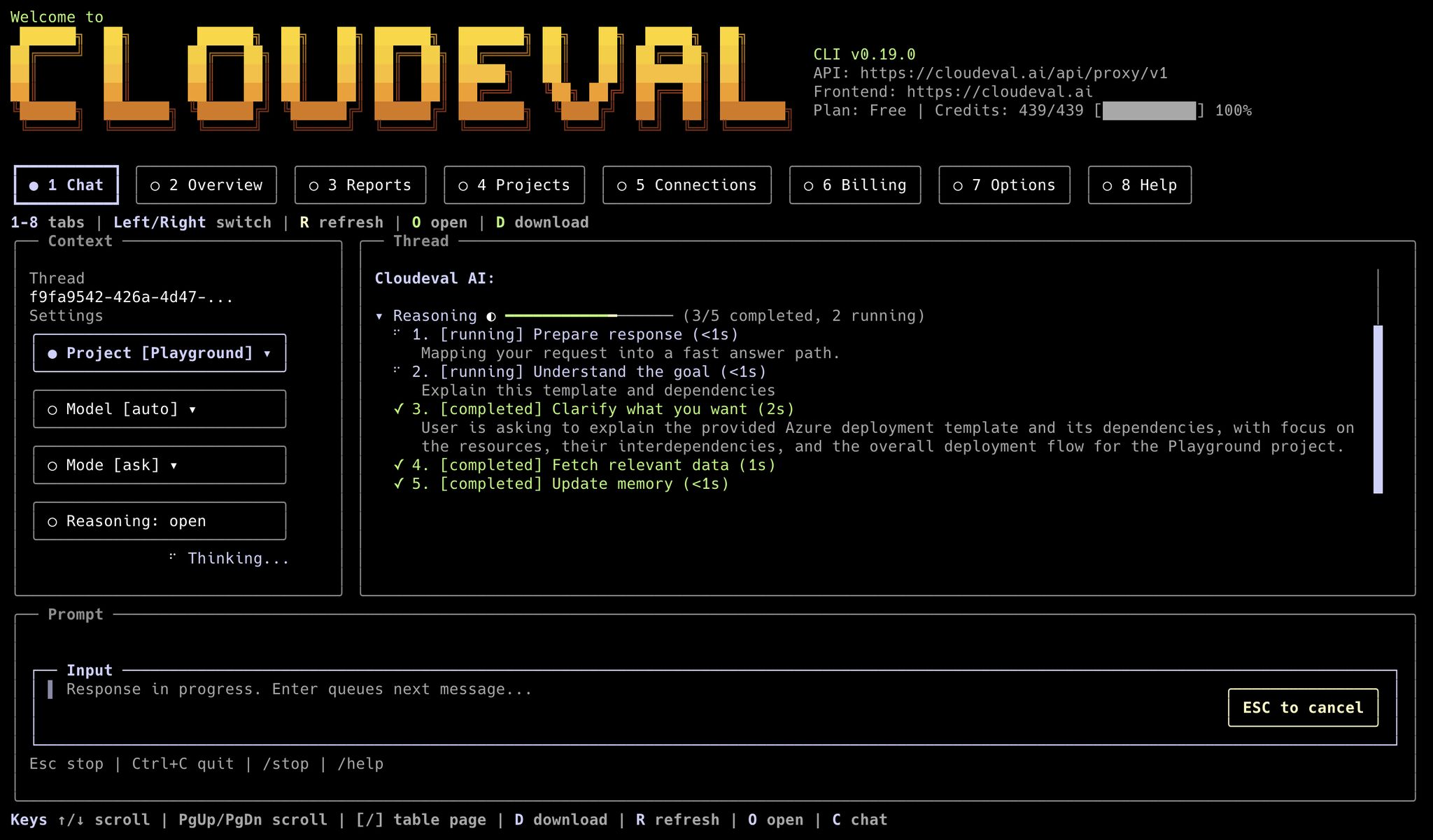
CloudEval CLI is the terminal surface for CloudEval AI. It is designed for developers, cloud engineers, platform teams, and agents that need repeatable workflows and scriptable output.
 ## What the CLI is good at
* project creation from ARM JSON or template URLs
* report runs and saved report retrieval
* one-shot grounded questions
* billing and credit inspection
* local setup profiles for agents and environments
* local diagnostics and model discovery
* searchable local session history for one-shot CLI questions
* resumable terminal chat sessions
* a local stdio MCP server for agent tools, resources, and prompts
* exact app deeplinks for projects, reports, connections, chat, and billing
* machine-readable output for automation
## CLI vs web app
| Task | Best surface |
| ------------------------------------------- | ------------------------------ |
| Import a template from a script or job | CLI |
| Run reports and save JSON output | CLI |
| Ask one grounded question in automation | CLI |
| Expose CloudEval to an MCP-compatible agent | CLI |
| Review a diagram visually | Web app |
| Explore reports interactively | Web app |
| Manage sharing and collaboration | Web app |
| Use a terminal-first interactive experience | `cloudeval` or `cloudeval tui` |
## Binaries and service defaults
CloudEval ships two binary names:
* `cloudeval`
* `eva`
For normal production use, the CLI already knows the CloudEval service and app
URLs. Pass `--base-url` or `--frontend-url` only when you are targeting a
self-hosted, staging, or local environment.
## Interactive vs pipeable work
Run without arguments when you want the terminal UI:
```bash theme={null}
cloudeval
cloudeval tui
cloudeval tui --tab reports --project
```
Use explicit subcommands when you want output that another tool can consume:
```bash theme={null}
cloudeval setup --non-interactive --profile codex --project --model gpt-5-nano --format json
cloudeval doctor --profile codex --format json
cloudeval doctor --profile codex --mcp --format json
cloudeval ask "Summarize project risk" --project --format json --non-interactive
cloudeval reports run --project --type all --wait --format json
cloudeval projects list --format json
```
## Profiles and local configuration
Use `cloudeval setup` when you want the CLI to remember defaults such as the
CloudEval service URL, app URL, default project, and default model:
```bash theme={null}
cloudeval setup \
--non-interactive \
--profile codex \
--project \
--model gpt-5-nano \
--format json
```
Inspect or change those settings with:
```bash theme={null}
cloudeval config show --profile codex --format json
cloudeval config set model gpt-5-nano --profile codex --format json
cloudeval config path --profile codex
```
Profiles are selected with `--profile ` or `CLOUDEVAL_PROFILE`. Explicit
command flags still override profile defaults.
## Authentication modes
CloudEval supports three practical auth patterns:
* Browser login with `cloudeval login` when your terminal can open a browser on the same machine
* Headless device-code login with `cloudeval login --headless` when you are using SSH, a remote server, a container, or another terminal without a usable browser handoff
* Machine or service access through `--machine` when service-principal credentials are configured
Useful auth commands:
```bash theme={null}
cloudeval login
cloudeval login --headless
cloudeval auth status
cloudeval logout
cloudeval logout --all-devices
```
`cloudeval auth status` shows whether you are authenticated, whether tokens are cached, where the CLI is storing credentials, the effective service URL, and any active session or account identifiers currently stored by the CLI.
## Diagnostics, models, and sessions
Use diagnostics before relying on a local install in automation:
```bash theme={null}
cloudeval status --profile codex --format json
cloudeval doctor --profile codex --format json
cloudeval doctor --profile codex --deep --format json
```
Use model commands to discover CloudEval-supported models and set a default:
```bash theme={null}
cloudeval models list --profile codex --format json
cloudeval models default set gpt-5-nano --profile codex --format json
cloudeval models default get --profile codex --format json
```
Successful `ask` runs are saved to local profile-scoped session history:
```bash theme={null}
cloudeval sessions list --profile codex --format json
cloudeval sessions search "cost spike" --profile codex --format json
cloudeval sessions get --profile codex --format json
cloudeval sessions rename "Production cost review" --profile codex --format json
cloudeval sessions export --profile codex --format json
```
Resume a previous terminal conversation by title or thread ID:
```bash theme={null}
cloudeval chat --continue --profile codex
cloudeval chat --resume "Production cost review" --profile codex
cloudeval ask "Follow up on the same investigation" --thread --profile codex --format json --non-interactive
```
## MCP server mode
CloudEval can also run as a local stdio MCP server when you want an agent tool
to call CloudEval directly instead of shelling out to individual commands.
Start the server:
```bash theme={null}
cloudeval mcp status --format json
cloudeval mcp serve
```
For Codex:
```bash theme={null}
cloudeval mcp setup codex --dry-run
codex mcp add cloudeval -- cloudeval mcp serve
```
For Claude Desktop and Cursor:
```bash theme={null}
cloudeval mcp setup claude --dry-run
cloudeval mcp setup cursor --dry-run
```
For JSON-configured MCP clients:
```bash theme={null}
cloudeval mcp setup generic --dry-run --toolset readonly --format json
```
```json theme={null}
{
"mcpServers": {
"cloudeval": {
"command": "cloudeval",
"args": ["mcp", "serve"]
}
}
}
```
For Ollama-powered agents, configure the MCP-capable host that Ollama launches.
CloudEval does not need a separate Ollama bridge; the host only needs a stdio
MCP entry that runs `cloudeval mcp serve`.
Use focused toolsets when an agent does not need the full CloudEval surface:
```bash theme={null}
cloudeval mcp serve --toolset readonly
cloudeval mcp serve --toolset projects
cloudeval mcp serve --toolset reports
cloudeval mcp serve --toolset billing
```
Important behavior:
* transport is `stdio`
* auth can come from stored `cloudeval login` credentials, stored `cloudeval login --headless` credentials, or `--machine`
* run login before starting `mcp serve`; stdin is reserved for MCP messages
* `doctor --mcp` checks the local MCP discovery surface
* the server exposes CloudEval tools for `ask`, projects, reports, billing, deeplinks, and capability discovery
* MCP clients that support resources and prompts can discover project, billing, report, and review-oriented context directly
## Output model
Machine-friendly commands support these formats:
* `text`
* `json`
* `ndjson`
* `markdown`
Report-oriented commands also support additional presentation formats such as `summary`, `table`, and `tui`.
For automation, treat this as the contract:
* stdout is for command data
* stderr is for prompts, warnings, auth flow messages, and browser-open messages
* `cloudeval capabilities --format json` is the current command source of truth
## Exit codes
CloudEval exposes stable exit codes for automation:
* `0`: success
* `1`: expected failure
* `2`: usage error
* `3`: authentication required
* `4`: service unavailable
* `5`: object not found
## Safe defaults
* Prefer `--format json` for scripts.
* Prefer `--non-interactive` in CI or agent workflows.
* Prefer `--profile ` when multiple agents or environments share one machine.
* Prefer `--print-url --no-open` when a command can generate a CloudEval app link.
* Use `cloudeval login --headless` for SSH, containers, or remote terminals.
* Use `--machine` only when service-principal machine authentication is configured.
* Prefer focused MCP toolsets for assistants that only need read-only, project, report, or billing access.
## Next step
Use [CLI command reference](/reference/cli-command-reference) for the current command surface, or [Use the CLI](/quickstart/use-the-cli) if you want a working setup sequence first.
## What the CLI is good at
* project creation from ARM JSON or template URLs
* report runs and saved report retrieval
* one-shot grounded questions
* billing and credit inspection
* local setup profiles for agents and environments
* local diagnostics and model discovery
* searchable local session history for one-shot CLI questions
* resumable terminal chat sessions
* a local stdio MCP server for agent tools, resources, and prompts
* exact app deeplinks for projects, reports, connections, chat, and billing
* machine-readable output for automation
## CLI vs web app
| Task | Best surface |
| ------------------------------------------- | ------------------------------ |
| Import a template from a script or job | CLI |
| Run reports and save JSON output | CLI |
| Ask one grounded question in automation | CLI |
| Expose CloudEval to an MCP-compatible agent | CLI |
| Review a diagram visually | Web app |
| Explore reports interactively | Web app |
| Manage sharing and collaboration | Web app |
| Use a terminal-first interactive experience | `cloudeval` or `cloudeval tui` |
## Binaries and service defaults
CloudEval ships two binary names:
* `cloudeval`
* `eva`
For normal production use, the CLI already knows the CloudEval service and app
URLs. Pass `--base-url` or `--frontend-url` only when you are targeting a
self-hosted, staging, or local environment.
## Interactive vs pipeable work
Run without arguments when you want the terminal UI:
```bash theme={null}
cloudeval
cloudeval tui
cloudeval tui --tab reports --project
```
Use explicit subcommands when you want output that another tool can consume:
```bash theme={null}
cloudeval setup --non-interactive --profile codex --project --model gpt-5-nano --format json
cloudeval doctor --profile codex --format json
cloudeval doctor --profile codex --mcp --format json
cloudeval ask "Summarize project risk" --project --format json --non-interactive
cloudeval reports run --project --type all --wait --format json
cloudeval projects list --format json
```
## Profiles and local configuration
Use `cloudeval setup` when you want the CLI to remember defaults such as the
CloudEval service URL, app URL, default project, and default model:
```bash theme={null}
cloudeval setup \
--non-interactive \
--profile codex \
--project \
--model gpt-5-nano \
--format json
```
Inspect or change those settings with:
```bash theme={null}
cloudeval config show --profile codex --format json
cloudeval config set model gpt-5-nano --profile codex --format json
cloudeval config path --profile codex
```
Profiles are selected with `--profile ` or `CLOUDEVAL_PROFILE`. Explicit
command flags still override profile defaults.
## Authentication modes
CloudEval supports three practical auth patterns:
* Browser login with `cloudeval login` when your terminal can open a browser on the same machine
* Headless device-code login with `cloudeval login --headless` when you are using SSH, a remote server, a container, or another terminal without a usable browser handoff
* Machine or service access through `--machine` when service-principal credentials are configured
Useful auth commands:
```bash theme={null}
cloudeval login
cloudeval login --headless
cloudeval auth status
cloudeval logout
cloudeval logout --all-devices
```
`cloudeval auth status` shows whether you are authenticated, whether tokens are cached, where the CLI is storing credentials, the effective service URL, and any active session or account identifiers currently stored by the CLI.
## Diagnostics, models, and sessions
Use diagnostics before relying on a local install in automation:
```bash theme={null}
cloudeval status --profile codex --format json
cloudeval doctor --profile codex --format json
cloudeval doctor --profile codex --deep --format json
```
Use model commands to discover CloudEval-supported models and set a default:
```bash theme={null}
cloudeval models list --profile codex --format json
cloudeval models default set gpt-5-nano --profile codex --format json
cloudeval models default get --profile codex --format json
```
Successful `ask` runs are saved to local profile-scoped session history:
```bash theme={null}
cloudeval sessions list --profile codex --format json
cloudeval sessions search "cost spike" --profile codex --format json
cloudeval sessions get --profile codex --format json
cloudeval sessions rename "Production cost review" --profile codex --format json
cloudeval sessions export --profile codex --format json
```
Resume a previous terminal conversation by title or thread ID:
```bash theme={null}
cloudeval chat --continue --profile codex
cloudeval chat --resume "Production cost review" --profile codex
cloudeval ask "Follow up on the same investigation" --thread --profile codex --format json --non-interactive
```
## MCP server mode
CloudEval can also run as a local stdio MCP server when you want an agent tool
to call CloudEval directly instead of shelling out to individual commands.
Start the server:
```bash theme={null}
cloudeval mcp status --format json
cloudeval mcp serve
```
For Codex:
```bash theme={null}
cloudeval mcp setup codex --dry-run
codex mcp add cloudeval -- cloudeval mcp serve
```
For Claude Desktop and Cursor:
```bash theme={null}
cloudeval mcp setup claude --dry-run
cloudeval mcp setup cursor --dry-run
```
For JSON-configured MCP clients:
```bash theme={null}
cloudeval mcp setup generic --dry-run --toolset readonly --format json
```
```json theme={null}
{
"mcpServers": {
"cloudeval": {
"command": "cloudeval",
"args": ["mcp", "serve"]
}
}
}
```
For Ollama-powered agents, configure the MCP-capable host that Ollama launches.
CloudEval does not need a separate Ollama bridge; the host only needs a stdio
MCP entry that runs `cloudeval mcp serve`.
Use focused toolsets when an agent does not need the full CloudEval surface:
```bash theme={null}
cloudeval mcp serve --toolset readonly
cloudeval mcp serve --toolset projects
cloudeval mcp serve --toolset reports
cloudeval mcp serve --toolset billing
```
Important behavior:
* transport is `stdio`
* auth can come from stored `cloudeval login` credentials, stored `cloudeval login --headless` credentials, or `--machine`
* run login before starting `mcp serve`; stdin is reserved for MCP messages
* `doctor --mcp` checks the local MCP discovery surface
* the server exposes CloudEval tools for `ask`, projects, reports, billing, deeplinks, and capability discovery
* MCP clients that support resources and prompts can discover project, billing, report, and review-oriented context directly
## Output model
Machine-friendly commands support these formats:
* `text`
* `json`
* `ndjson`
* `markdown`
Report-oriented commands also support additional presentation formats such as `summary`, `table`, and `tui`.
For automation, treat this as the contract:
* stdout is for command data
* stderr is for prompts, warnings, auth flow messages, and browser-open messages
* `cloudeval capabilities --format json` is the current command source of truth
## Exit codes
CloudEval exposes stable exit codes for automation:
* `0`: success
* `1`: expected failure
* `2`: usage error
* `3`: authentication required
* `4`: service unavailable
* `5`: object not found
## Safe defaults
* Prefer `--format json` for scripts.
* Prefer `--non-interactive` in CI or agent workflows.
* Prefer `--profile ` when multiple agents or environments share one machine.
* Prefer `--print-url --no-open` when a command can generate a CloudEval app link.
* Use `cloudeval login --headless` for SSH, containers, or remote terminals.
* Use `--machine` only when service-principal machine authentication is configured.
* Prefer focused MCP toolsets for assistants that only need read-only, project, report, or billing access.
## Next step
Use [CLI command reference](/reference/cli-command-reference) for the current command surface, or [Use the CLI](/quickstart/use-the-cli) if you want a working setup sequence first.