> ## Documentation Index
> Fetch the complete documentation index at: https://docs.cloudeval.ai/llms.txt
> Use this file to discover all available pages before exploring further.
# Terminal UI
> Use CloudEval's terminal UI for interactive review and explicit CLI commands for automation.
CloudEval has two terminal modes: an interactive terminal UI for humans and explicit commands for scripts, agents, and CI jobs.
 ## When to use the terminal UI
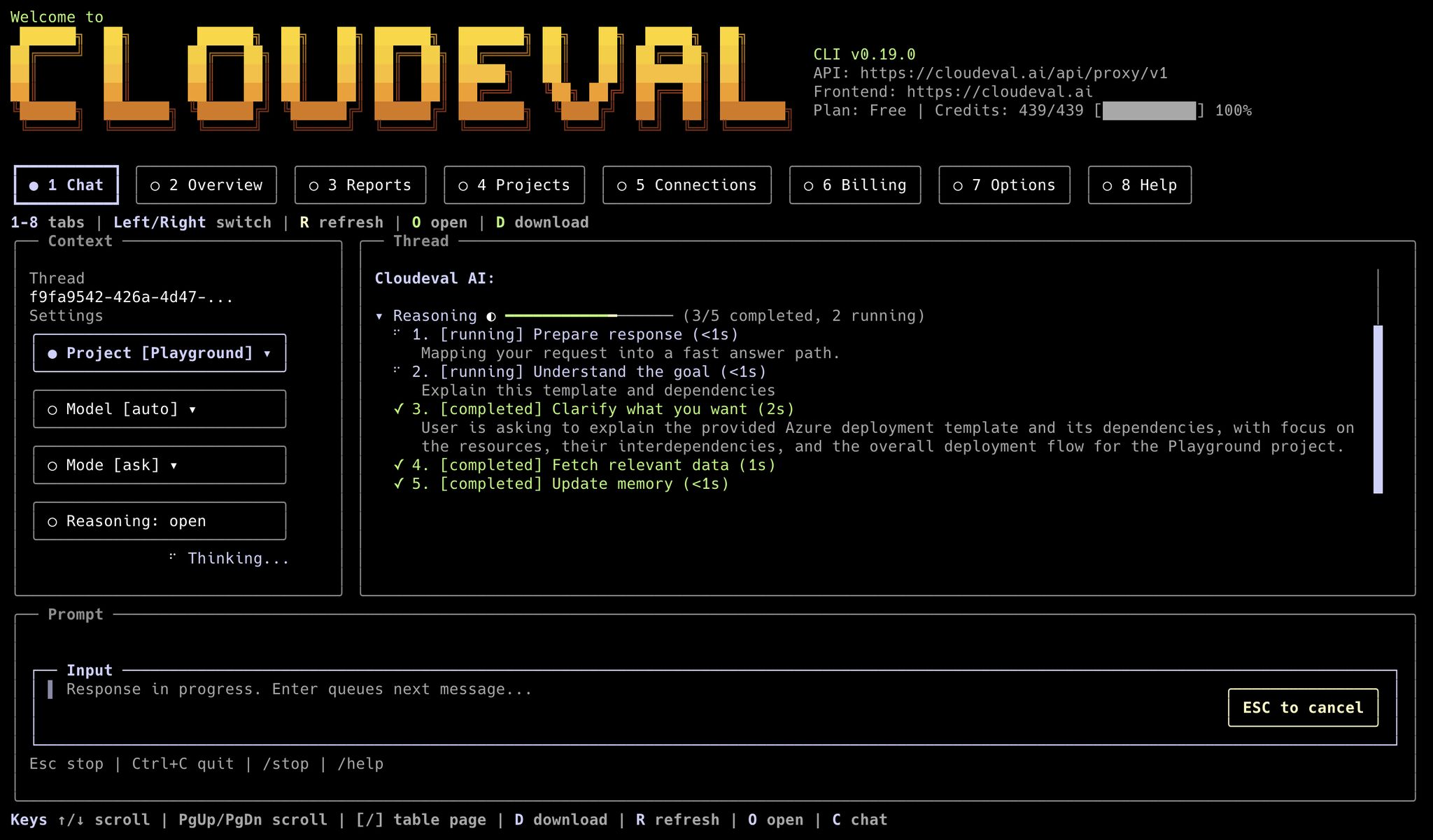
Use the terminal UI when you want to stay in a terminal but still inspect CloudEval interactively.
```bash theme={null}
cloudeval
cloudeval tui
cloudeval tui --tab reports --project
```
## When to use the terminal UI
Use the terminal UI when you want to stay in a terminal but still inspect CloudEval interactively.
```bash theme={null}
cloudeval
cloudeval tui
cloudeval tui --tab reports --project
```
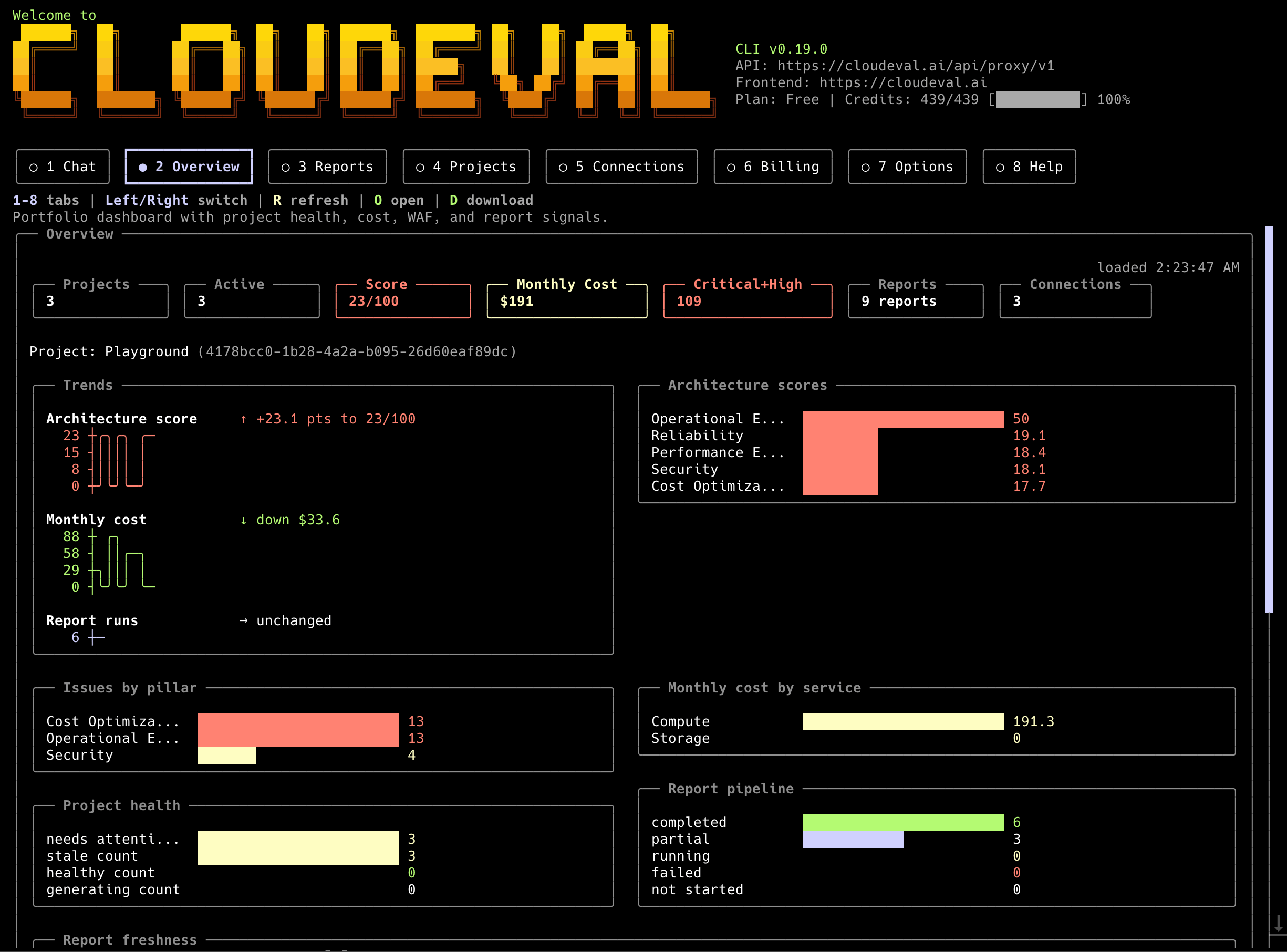 The terminal UI is useful for:
* browsing projects
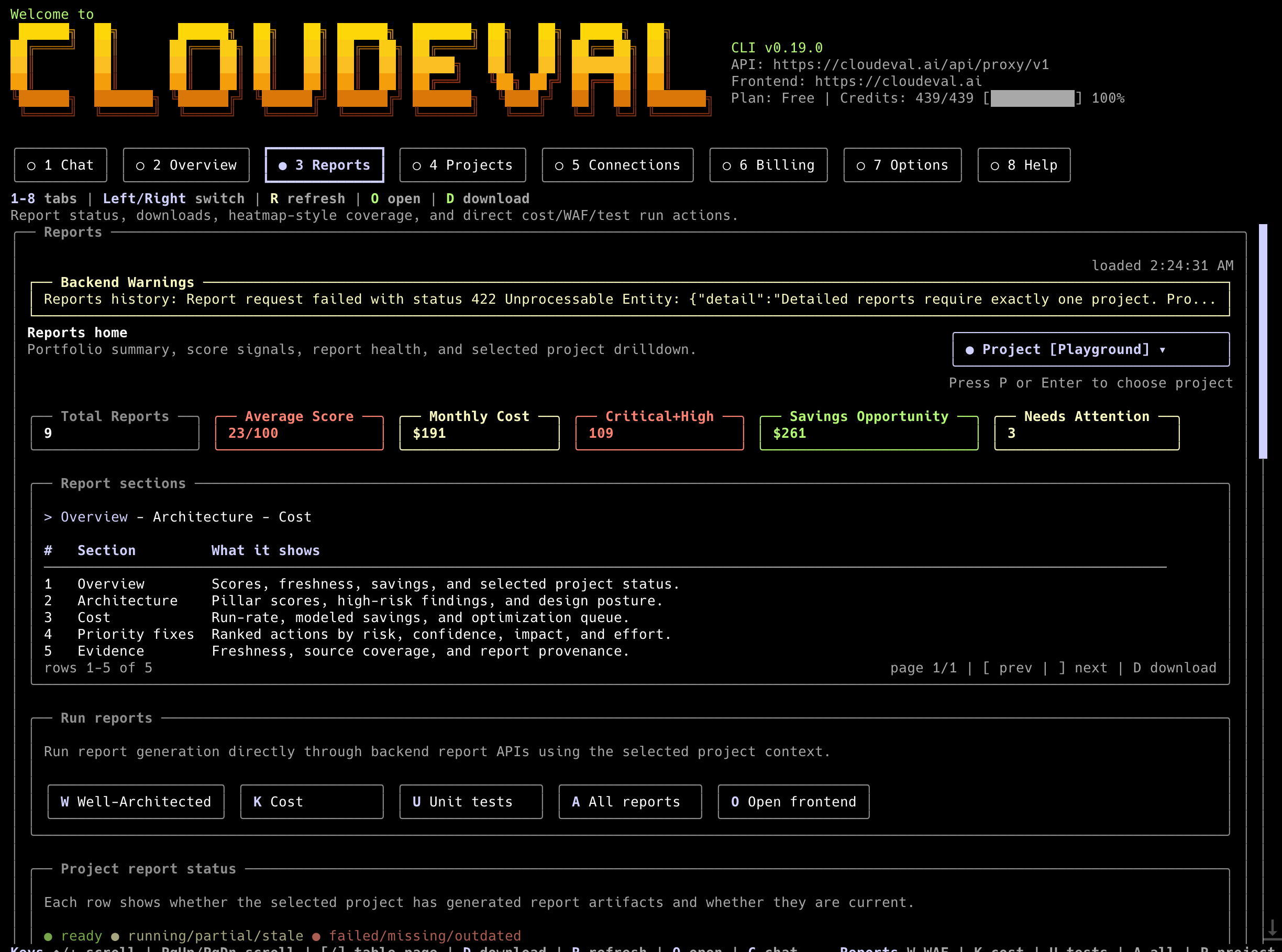
* jumping into project reports
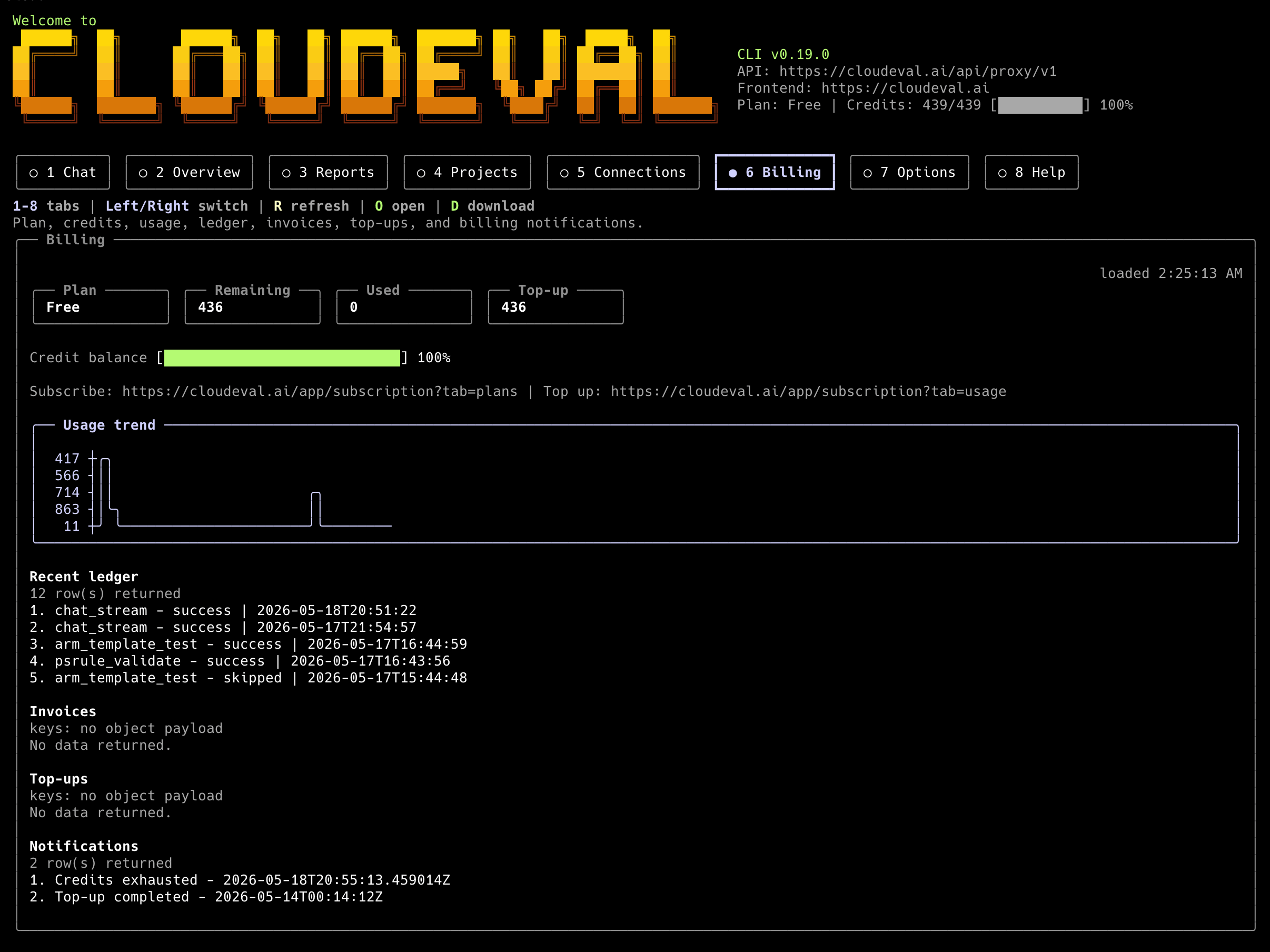
* reviewing chat or help context
* opening exact app pages from a project-oriented terminal session
Do not parse terminal UI output in automation. Use explicit commands with `--format json` instead.
The terminal UI is useful for:
* browsing projects
* jumping into project reports
* reviewing chat or help context
* opening exact app pages from a project-oriented terminal session
Do not parse terminal UI output in automation. Use explicit commands with `--format json` instead.
 ## When to use explicit commands
Use explicit commands when another tool needs predictable output.
```bash theme={null}
cloudeval status --profile codex --format json
cloudeval projects list --profile codex --format json
cloudeval reports run --project --type all --wait --profile codex --format json
cloudeval ask "Summarize the highest-risk findings" --project --profile codex --format json --non-interactive
```
## When to use explicit commands
Use explicit commands when another tool needs predictable output.
```bash theme={null}
cloudeval status --profile codex --format json
cloudeval projects list --profile codex --format json
cloudeval reports run --project --type all --wait --profile codex --format json
cloudeval ask "Summarize the highest-risk findings" --project --profile codex --format json --non-interactive
```
 This mode is better for:
* CI jobs
* MCP-adjacent automation
* shell scripts
* local agents
* repeatable report generation
* saving output to files
## Output rules
For machine-readable commands:
* stdout is the data channel
* stderr is for prompts, progress, warnings, and browser-open messages
* `--output ` writes durable artifacts when supported
* `--profile ` keeps defaults scoped to one agent or workspace
## Good defaults for automation
```bash theme={null}
cloudeval doctor --profile codex --format json
cloudeval capabilities --profile codex --format json
cloudeval config show --profile codex --format json
```
Use those checks before relying on a local CLI install in automation.
## Next step
Use [CLI command reference](/reference/cli-command-reference) for the full command surface, or [MCP client setup](/reference/mcp-client-setup) when an agent should call CloudEval through MCP instead of shell commands.
This mode is better for:
* CI jobs
* MCP-adjacent automation
* shell scripts
* local agents
* repeatable report generation
* saving output to files
## Output rules
For machine-readable commands:
* stdout is the data channel
* stderr is for prompts, progress, warnings, and browser-open messages
* `--output ` writes durable artifacts when supported
* `--profile ` keeps defaults scoped to one agent or workspace
## Good defaults for automation
```bash theme={null}
cloudeval doctor --profile codex --format json
cloudeval capabilities --profile codex --format json
cloudeval config show --profile codex --format json
```
Use those checks before relying on a local CLI install in automation.
## Next step
Use [CLI command reference](/reference/cli-command-reference) for the full command surface, or [MCP client setup](/reference/mcp-client-setup) when an agent should call CloudEval through MCP instead of shell commands.