> ## Documentation Index
> Fetch the complete documentation index at: https://docs.cloudeval.ai/llms.txt
> Use this file to discover all available pages before exploring further.
# Automate evaluations with the CLI
> Use CloudEval CLI for repeatable import, evaluation, download, and deeplink workflows.
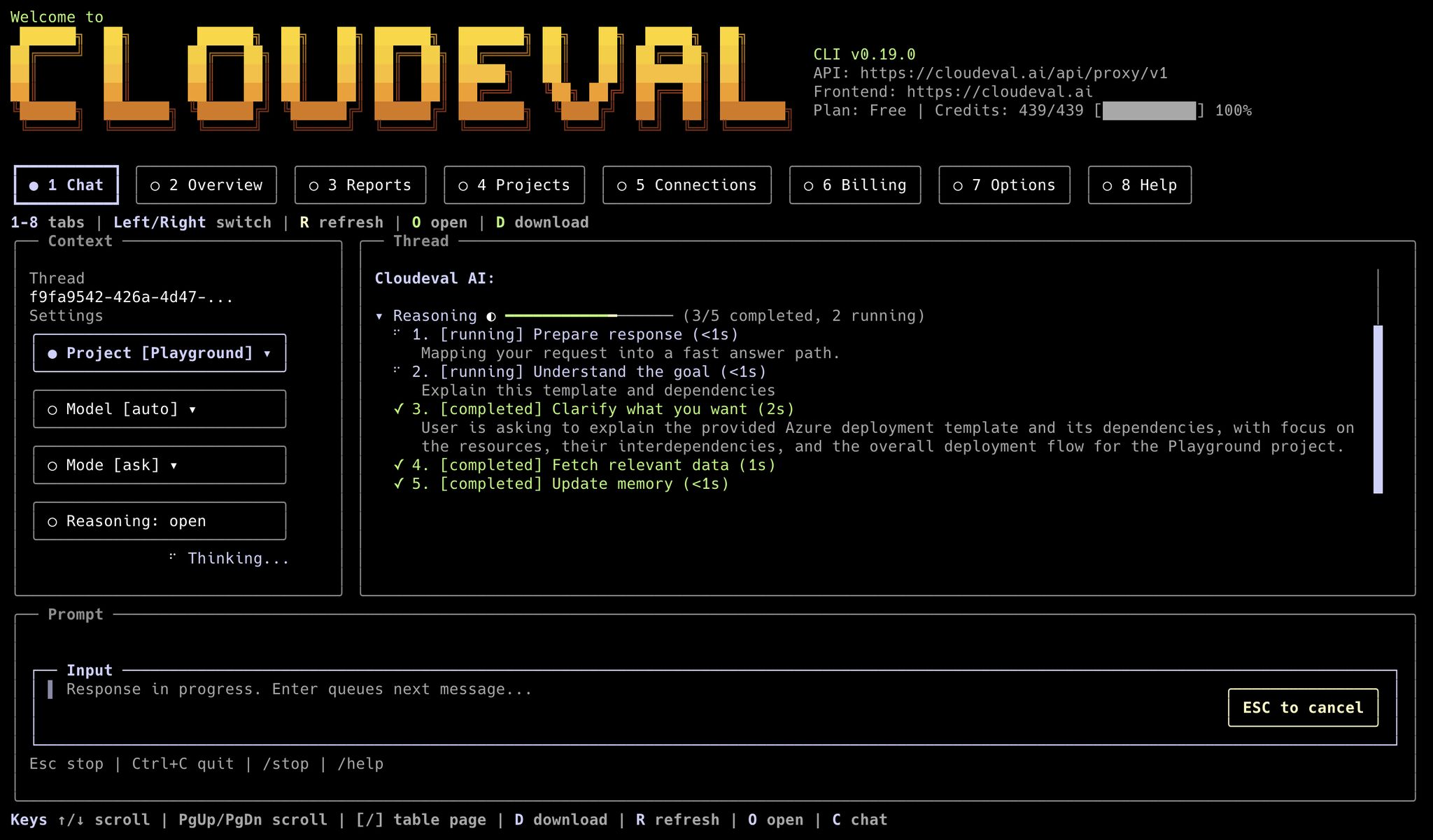
This page is for teams that want CloudEval to fit into existing engineering workflows instead of being a browser-only step.
For **GitHub Actions** (composite action, merge gates, PR comments, artifacts), use the official **[GitHub Actions integration](/workflows/github-actions)** guide and repository [ganakailabs/cloudeval-action](https://github.com/ganakailabs/cloudeval-action).
 ## Before you automate
* Authenticate first with `cloudeval login` or `cloudeval login --headless`.
* Run `cloudeval capabilities --format json` before hard-coding commands in a new automation.
* Run `cloudeval doctor --format json` before relying on a local install in automation.
* Run `cloudeval doctor --mcp --format json` before wiring CloudEval into an MCP-compatible agent.
* Prefer `--format json --non-interactive --profile --print-url --no-open` unless a workflow explicitly needs browser behavior.
## Configure an automation profile
Profiles keep defaults isolated for agents, CI jobs, and environments:
```bash theme={null}
cloudeval setup \
--non-interactive \
--profile nightly \
--model gpt-5-nano \
--format json
cloudeval status --profile nightly --format json
cloudeval doctor --profile nightly --format json
```
Add `--base-url`, `--frontend-url`, and `--project` only when your automation
must target a non-default CloudEval environment:
```bash theme={null}
cloudeval setup \
--non-interactive \
--profile nightly \
--base-url \
--frontend-url \
--project \
--model gpt-5-nano \
--format json
```
## Import ARM JSON from a local file
Use `--template-file` when your pipeline already has an ARM template on disk.
This also works when an agent or previous step downloaded an Azure Quickstart
template into the workspace.
```bash theme={null}
curl -fsSL \
https://raw.githubusercontent.com/Azure/azure-quickstart-templates/master/quickstarts/microsoft.compute/1vm-2nics-2subnets-1vnet/azuredeploy.json \
-o ./azuredeploy.json
cloudeval projects create \
--template-file ./azuredeploy.json \
--name "Nightly evaluation" \
--provider azure \
--profile nightly \
--format json \
--output ./cloudeval-project.json
```
If the file already exists locally, point the CLI at that file instead:
```bash theme={null}
cloudeval projects create \
--template-file ./.cloudeval-downloads/1vm-2nics-2subnets-1vnet.azuredeploy.json \
--name "Nightly evaluation" \
--provider azure \
--profile nightly \
--format json \
--output ./cloudeval-project.json
```
## Import from an Azure Quickstart GitHub URL
Use `--template-url` when the source of truth should stay in GitHub. GitHub
`blob` and `tree` URLs are normalized to raw template content by the CLI before
the project is created.
```bash theme={null}
cloudeval projects create \
--template-url https://github.com/Azure/azure-quickstart-templates/blob/master/quickstarts/microsoft.compute/1vm-2nics-2subnets-1vnet/azuredeploy.json \
--name "Nightly evaluation" \
--provider azure \
--profile nightly \
--format json \
--output ./cloudeval-project.json
```
## Review a GitHub-backed project locally
Use `cloudeval review` after a CloudEval project has been created from a GitHub repository through the CloudEval GitHub App. The command resolves the current repository, branch, and `HEAD` commit, syncs that commit to CloudEval, waits for the sync/report refresh by default, includes Well-Architected, cost, and validation drill-downs, includes an AI-written review summary, and evaluates report gates from `.cloudeval/config.yaml`.
```bash theme={null}
cloudeval review \
--project "$PROJECT_ID" \
--format json \
--output ./cloudeval-review \
--non-interactive
```
The command intentionally stops when the local working tree is dirty:
```text theme={null}
Reviews pushed commits only. Add --ignore-dirty to review HEAD anyway.
```
That guard keeps local and CI results tied to pushed commits. Add `--ignore-dirty` only for deliberate generated-file workflows.
When `.cloudeval/config.yaml` enables `ci.review.outputs.pdf.enabled`, the same `--output` directory also includes `review.pdf` and `review.json` records `data.outputs.pdf`.
Use `--no-wait` only when you want to submit the GitHub sync job and return
before reports finish. Use `--no-ai-summary` when local automation should write
only deterministic gate/report data. By default the AI summary runs in ask mode;
use `--ai-summary-mode agent --ai-summary-profile architecture` when you want the
same summary request routed through an Agent Profile.
## Import a nested ARM workspace
Use `--workspace-dir` when the source folder contains a parent ARM template,
parameters, and linked child templates. Add `.cloudeval/config.yaml` at the
repository root when you want to pin the visualization source explicitly:
```text theme={null}
.cloudeval/
config.yaml
azuredeploy.json
azuredeploy.parameters.json
nested/
network.json
storage.json
```
Create the project and run the same graph and report checks:
```bash theme={null}
cloudeval projects create \
--workspace-dir ./infra \
--workspace-entry azuredeploy.json \
--name "Nightly nested ARM evaluation" \
--provider azure \
--profile nightly \
--format json \
--output ./cloudeval-project.json
PROJECT_ID=$(jq -r '.data.project.id' ./cloudeval-project.json)
cloudeval projects get "$PROJECT_ID" \
--profile nightly \
--format json
cloudeval projects graph "$PROJECT_ID" \
--profile nightly \
--format json \
--non-interactive
cloudeval reports run \
--project "$PROJECT_ID" \
--type all \
--wait \
--profile nightly \
--format json
```
The report and graph commands use the resolved stack generated from
`.cloudeval/config.yaml`. If the config file is missing, the CLI creates one
using the selected entry file and detected parameters file.
## Create a Cloud sync project
Use `--cloud-sync` when automation should create a project from the current
Azure inventory. The service principal should use the least-privilege role from
[Azure Cloud sync permissions](/reference/azure-live-sync-permissions).
```bash theme={null}
cloudeval projects create \
--cloud-sync \
--azure-tenant-id "$AZURE_TENANT_ID" \
--azure-client-id "$AZURE_CLIENT_ID" \
--azure-client-secret "$AZURE_CLIENT_SECRET" \
--azure-subscription-id "$AZURE_SUBSCRIPTION_ID" \
--resource-group rg-app \
--name "Nightly Cloud sync" \
--profile nightly \
--format json \
--output ./cloudeval-project.json
PROJECT_ID=$(jq -r '.data.project.id' ./cloudeval-project.json)
cloudeval projects get "$PROJECT_ID" \
--profile nightly \
--format json
cloudeval projects graph sync-runs "$PROJECT_ID" \
--profile nightly \
--format json \
--non-interactive
cloudeval reports run \
--project "$PROJECT_ID" \
--type all \
--wait \
--profile nightly \
--format json
cloudeval reports download \
--project "$PROJECT_ID" \
--type all \
--view parsed \
--output ./reports \
--profile nightly \
--format json \
--non-interactive
```
## Capture project and connection IDs
The response includes the created project and connection objects. Persist the
returned IDs instead of guessing or reconstructing them later:
```bash theme={null}
PROJECT_ID=$(jq -r '.data.project.id' ./cloudeval-project.json)
CONNECTION_ID=$(jq -r '.data.connection.id' ./cloudeval-project.json)
cloudeval projects get "$PROJECT_ID" --profile nightly --format json
cloudeval connections get "$CONNECTION_ID" --profile nightly --format json
```
## Compile Bicep, then import
CloudEval's strongest IaC path today is ARM JSON. If your source of truth is Bicep, compile it first:
```bash theme={null}
az bicep build --file ./main.bicep --outfile ./dist/template.json
cloudeval projects create \
--template-file ./dist/template.json \
--name "Bicep import" \
--provider azure \
--profile nightly \
--format json \
--output ./cloudeval-project.json
```
## Run a full evaluation
```bash theme={null}
cloudeval reports run \
--project "$PROJECT_ID" \
--type all \
--wait \
--profile nightly \
--format json
```
Current report run types are:
* `cost`
* `waf`
* `architecture`
* `unit-tests`
* `all`
Use `--no-save-report` when you want a transient run instead of saving the report snapshot.
## Download report payloads for another system
Download all available saved report payloads for a project:
```bash theme={null}
cloudeval reports download \
--project "$PROJECT_ID" \
--type all \
--view parsed \
--output ./reports \
--profile nightly \
--format json \
--non-interactive
```
Notes:
* `--type all` writes multiple files when the output target is a directory.
* `--view` supports `raw`, `parsed`, and `formatted`.
* `--type architecture` currently maps to the architecture or WAF-style payload for that project.
## Ask a grounded question in a script
```bash theme={null}
cloudeval ask "List the highest severity architecture findings for this project" \
--project "$PROJECT_ID" \
--profile nightly \
--format json \
--non-interactive \
--print-url \
--no-open
```
This is the right pattern when you want a single grounded answer plus a CloudEval app link for follow-up review.
Review the local session produced by `ask`:
```bash theme={null}
cloudeval sessions list --profile nightly --format json
cloudeval sessions search "architecture findings" --profile nightly --format json
cloudeval sessions get --profile nightly --format json
```
Give an important session a readable title and continue it later:
```bash theme={null}
cloudeval sessions rename "Nightly architecture review" --profile nightly --format json
cloudeval chat --resume "Nightly architecture review" --profile nightly
```
Reuse a known thread ID when a scheduled job should keep context together:
```bash theme={null}
cloudeval ask "Compare this run with the previous review" \
--thread \
--project "$PROJECT_ID" \
--profile nightly \
--format json \
--non-interactive
```
## Manage model defaults
Use `models list` to see CloudEval-supported models, then set a profile default:
```bash theme={null}
cloudeval models list --profile nightly --format json
cloudeval models default set gpt-5-nano --profile nightly --format json
```
Commands such as `ask`, `chat`, and `tui` use that profile model when `--model`
is not passed.
## Run CloudEval as an MCP server
Use this when your automation platform already supports MCP and should call
CloudEval tools directly.
```bash theme={null}
cloudeval mcp status --format json
cloudeval doctor --mcp --format json
codex mcp add cloudeval -- cloudeval mcp serve
```
Generate client setup instructions:
```bash theme={null}
cloudeval mcp setup codex --dry-run
cloudeval mcp setup claude --dry-run
cloudeval mcp setup cursor --dry-run
cloudeval mcp setup generic --dry-run --toolset readonly --format json
```
Use `generic` when your MCP client, including an Ollama-powered agent host,
accepts an `mcpServers` JSON entry.
Choose a focused toolset for tighter agent access:
```bash theme={null}
cloudeval mcp serve --toolset readonly
cloudeval mcp serve --toolset reports
cloudeval mcp serve --toolset billing
```
Important notes:
* `mcp serve` uses `stdio`
* auth can come from stored `cloudeval login`, stored `cloudeval login --headless`, or `--machine`
* run login before starting `mcp serve`; stdin is reserved for MCP messages
* clients that support MCP resources and prompts can discover CloudEval capabilities, project context, billing summaries, latest reports, and review prompt templates
## Generate exact app deeplinks
Open commands are useful when an automation should hand a human the next page to inspect.
Project diagram:
```bash theme={null}
cloudeval open project "$PROJECT_ID" \
--view both \
--layout dependency \
--profile nightly \
--print-url \
--no-open
```
Headless diagram bytes:
```bash theme={null}
export CLOUDEVAL_BASE_URL="${CLOUDEVAL_BASE_URL:-https://cloudeval.ai}"
mkdir -p diagram-downloads
cloudeval projects export-diagram "$PROJECT_ID" \
--layout dependency \
--format png \
--labels all \
--output diagram-downloads/dependency.png \
--headers-output diagram-downloads/dependency.headers \
--base-url "$CLOUDEVAL_BASE_URL" \
--non-interactive
```
Use [Headless diagram image downloads](/reference/headless-diagram-image-downloads) for architecture/dependency, PNG/JPEG/SVG, public/share, and security-check variants.
Reports page:
```bash theme={null}
cloudeval open reports \
--project "$PROJECT_ID" \
--report-type cost \
--profile nightly \
--print-url \
--no-open
```
Billing usage page:
```bash theme={null}
cloudeval open billing \
--tab usage \
--profile nightly \
--print-url \
--no-open
```
## Where the web app still matters
The CLI does not replace every browser workflow.
* Visual diagram inspection is still better in the web app.
* Editing existing connections and troubleshooting credential failures are still
browser-oriented.
* Sharing and collaboration are easier to manage in the browser.
## Next step
Use [CLI command reference](/reference/cli-command-reference) for the full command surface, or [Agent and automation rules](/reference/agent-and-automation-rules) if you are building a more structured integration.
## Before you automate
* Authenticate first with `cloudeval login` or `cloudeval login --headless`.
* Run `cloudeval capabilities --format json` before hard-coding commands in a new automation.
* Run `cloudeval doctor --format json` before relying on a local install in automation.
* Run `cloudeval doctor --mcp --format json` before wiring CloudEval into an MCP-compatible agent.
* Prefer `--format json --non-interactive --profile --print-url --no-open` unless a workflow explicitly needs browser behavior.
## Configure an automation profile
Profiles keep defaults isolated for agents, CI jobs, and environments:
```bash theme={null}
cloudeval setup \
--non-interactive \
--profile nightly \
--model gpt-5-nano \
--format json
cloudeval status --profile nightly --format json
cloudeval doctor --profile nightly --format json
```
Add `--base-url`, `--frontend-url`, and `--project` only when your automation
must target a non-default CloudEval environment:
```bash theme={null}
cloudeval setup \
--non-interactive \
--profile nightly \
--base-url \
--frontend-url \
--project \
--model gpt-5-nano \
--format json
```
## Import ARM JSON from a local file
Use `--template-file` when your pipeline already has an ARM template on disk.
This also works when an agent or previous step downloaded an Azure Quickstart
template into the workspace.
```bash theme={null}
curl -fsSL \
https://raw.githubusercontent.com/Azure/azure-quickstart-templates/master/quickstarts/microsoft.compute/1vm-2nics-2subnets-1vnet/azuredeploy.json \
-o ./azuredeploy.json
cloudeval projects create \
--template-file ./azuredeploy.json \
--name "Nightly evaluation" \
--provider azure \
--profile nightly \
--format json \
--output ./cloudeval-project.json
```
If the file already exists locally, point the CLI at that file instead:
```bash theme={null}
cloudeval projects create \
--template-file ./.cloudeval-downloads/1vm-2nics-2subnets-1vnet.azuredeploy.json \
--name "Nightly evaluation" \
--provider azure \
--profile nightly \
--format json \
--output ./cloudeval-project.json
```
## Import from an Azure Quickstart GitHub URL
Use `--template-url` when the source of truth should stay in GitHub. GitHub
`blob` and `tree` URLs are normalized to raw template content by the CLI before
the project is created.
```bash theme={null}
cloudeval projects create \
--template-url https://github.com/Azure/azure-quickstart-templates/blob/master/quickstarts/microsoft.compute/1vm-2nics-2subnets-1vnet/azuredeploy.json \
--name "Nightly evaluation" \
--provider azure \
--profile nightly \
--format json \
--output ./cloudeval-project.json
```
## Review a GitHub-backed project locally
Use `cloudeval review` after a CloudEval project has been created from a GitHub repository through the CloudEval GitHub App. The command resolves the current repository, branch, and `HEAD` commit, syncs that commit to CloudEval, waits for the sync/report refresh by default, includes Well-Architected, cost, and validation drill-downs, includes an AI-written review summary, and evaluates report gates from `.cloudeval/config.yaml`.
```bash theme={null}
cloudeval review \
--project "$PROJECT_ID" \
--format json \
--output ./cloudeval-review \
--non-interactive
```
The command intentionally stops when the local working tree is dirty:
```text theme={null}
Reviews pushed commits only. Add --ignore-dirty to review HEAD anyway.
```
That guard keeps local and CI results tied to pushed commits. Add `--ignore-dirty` only for deliberate generated-file workflows.
When `.cloudeval/config.yaml` enables `ci.review.outputs.pdf.enabled`, the same `--output` directory also includes `review.pdf` and `review.json` records `data.outputs.pdf`.
Use `--no-wait` only when you want to submit the GitHub sync job and return
before reports finish. Use `--no-ai-summary` when local automation should write
only deterministic gate/report data. By default the AI summary runs in ask mode;
use `--ai-summary-mode agent --ai-summary-profile architecture` when you want the
same summary request routed through an Agent Profile.
## Import a nested ARM workspace
Use `--workspace-dir` when the source folder contains a parent ARM template,
parameters, and linked child templates. Add `.cloudeval/config.yaml` at the
repository root when you want to pin the visualization source explicitly:
```text theme={null}
.cloudeval/
config.yaml
azuredeploy.json
azuredeploy.parameters.json
nested/
network.json
storage.json
```
Create the project and run the same graph and report checks:
```bash theme={null}
cloudeval projects create \
--workspace-dir ./infra \
--workspace-entry azuredeploy.json \
--name "Nightly nested ARM evaluation" \
--provider azure \
--profile nightly \
--format json \
--output ./cloudeval-project.json
PROJECT_ID=$(jq -r '.data.project.id' ./cloudeval-project.json)
cloudeval projects get "$PROJECT_ID" \
--profile nightly \
--format json
cloudeval projects graph "$PROJECT_ID" \
--profile nightly \
--format json \
--non-interactive
cloudeval reports run \
--project "$PROJECT_ID" \
--type all \
--wait \
--profile nightly \
--format json
```
The report and graph commands use the resolved stack generated from
`.cloudeval/config.yaml`. If the config file is missing, the CLI creates one
using the selected entry file and detected parameters file.
## Create a Cloud sync project
Use `--cloud-sync` when automation should create a project from the current
Azure inventory. The service principal should use the least-privilege role from
[Azure Cloud sync permissions](/reference/azure-live-sync-permissions).
```bash theme={null}
cloudeval projects create \
--cloud-sync \
--azure-tenant-id "$AZURE_TENANT_ID" \
--azure-client-id "$AZURE_CLIENT_ID" \
--azure-client-secret "$AZURE_CLIENT_SECRET" \
--azure-subscription-id "$AZURE_SUBSCRIPTION_ID" \
--resource-group rg-app \
--name "Nightly Cloud sync" \
--profile nightly \
--format json \
--output ./cloudeval-project.json
PROJECT_ID=$(jq -r '.data.project.id' ./cloudeval-project.json)
cloudeval projects get "$PROJECT_ID" \
--profile nightly \
--format json
cloudeval projects graph sync-runs "$PROJECT_ID" \
--profile nightly \
--format json \
--non-interactive
cloudeval reports run \
--project "$PROJECT_ID" \
--type all \
--wait \
--profile nightly \
--format json
cloudeval reports download \
--project "$PROJECT_ID" \
--type all \
--view parsed \
--output ./reports \
--profile nightly \
--format json \
--non-interactive
```
## Capture project and connection IDs
The response includes the created project and connection objects. Persist the
returned IDs instead of guessing or reconstructing them later:
```bash theme={null}
PROJECT_ID=$(jq -r '.data.project.id' ./cloudeval-project.json)
CONNECTION_ID=$(jq -r '.data.connection.id' ./cloudeval-project.json)
cloudeval projects get "$PROJECT_ID" --profile nightly --format json
cloudeval connections get "$CONNECTION_ID" --profile nightly --format json
```
## Compile Bicep, then import
CloudEval's strongest IaC path today is ARM JSON. If your source of truth is Bicep, compile it first:
```bash theme={null}
az bicep build --file ./main.bicep --outfile ./dist/template.json
cloudeval projects create \
--template-file ./dist/template.json \
--name "Bicep import" \
--provider azure \
--profile nightly \
--format json \
--output ./cloudeval-project.json
```
## Run a full evaluation
```bash theme={null}
cloudeval reports run \
--project "$PROJECT_ID" \
--type all \
--wait \
--profile nightly \
--format json
```
Current report run types are:
* `cost`
* `waf`
* `architecture`
* `unit-tests`
* `all`
Use `--no-save-report` when you want a transient run instead of saving the report snapshot.
## Download report payloads for another system
Download all available saved report payloads for a project:
```bash theme={null}
cloudeval reports download \
--project "$PROJECT_ID" \
--type all \
--view parsed \
--output ./reports \
--profile nightly \
--format json \
--non-interactive
```
Notes:
* `--type all` writes multiple files when the output target is a directory.
* `--view` supports `raw`, `parsed`, and `formatted`.
* `--type architecture` currently maps to the architecture or WAF-style payload for that project.
## Ask a grounded question in a script
```bash theme={null}
cloudeval ask "List the highest severity architecture findings for this project" \
--project "$PROJECT_ID" \
--profile nightly \
--format json \
--non-interactive \
--print-url \
--no-open
```
This is the right pattern when you want a single grounded answer plus a CloudEval app link for follow-up review.
Review the local session produced by `ask`:
```bash theme={null}
cloudeval sessions list --profile nightly --format json
cloudeval sessions search "architecture findings" --profile nightly --format json
cloudeval sessions get --profile nightly --format json
```
Give an important session a readable title and continue it later:
```bash theme={null}
cloudeval sessions rename "Nightly architecture review" --profile nightly --format json
cloudeval chat --resume "Nightly architecture review" --profile nightly
```
Reuse a known thread ID when a scheduled job should keep context together:
```bash theme={null}
cloudeval ask "Compare this run with the previous review" \
--thread \
--project "$PROJECT_ID" \
--profile nightly \
--format json \
--non-interactive
```
## Manage model defaults
Use `models list` to see CloudEval-supported models, then set a profile default:
```bash theme={null}
cloudeval models list --profile nightly --format json
cloudeval models default set gpt-5-nano --profile nightly --format json
```
Commands such as `ask`, `chat`, and `tui` use that profile model when `--model`
is not passed.
## Run CloudEval as an MCP server
Use this when your automation platform already supports MCP and should call
CloudEval tools directly.
```bash theme={null}
cloudeval mcp status --format json
cloudeval doctor --mcp --format json
codex mcp add cloudeval -- cloudeval mcp serve
```
Generate client setup instructions:
```bash theme={null}
cloudeval mcp setup codex --dry-run
cloudeval mcp setup claude --dry-run
cloudeval mcp setup cursor --dry-run
cloudeval mcp setup generic --dry-run --toolset readonly --format json
```
Use `generic` when your MCP client, including an Ollama-powered agent host,
accepts an `mcpServers` JSON entry.
Choose a focused toolset for tighter agent access:
```bash theme={null}
cloudeval mcp serve --toolset readonly
cloudeval mcp serve --toolset reports
cloudeval mcp serve --toolset billing
```
Important notes:
* `mcp serve` uses `stdio`
* auth can come from stored `cloudeval login`, stored `cloudeval login --headless`, or `--machine`
* run login before starting `mcp serve`; stdin is reserved for MCP messages
* clients that support MCP resources and prompts can discover CloudEval capabilities, project context, billing summaries, latest reports, and review prompt templates
## Generate exact app deeplinks
Open commands are useful when an automation should hand a human the next page to inspect.
Project diagram:
```bash theme={null}
cloudeval open project "$PROJECT_ID" \
--view both \
--layout dependency \
--profile nightly \
--print-url \
--no-open
```
Headless diagram bytes:
```bash theme={null}
export CLOUDEVAL_BASE_URL="${CLOUDEVAL_BASE_URL:-https://cloudeval.ai}"
mkdir -p diagram-downloads
cloudeval projects export-diagram "$PROJECT_ID" \
--layout dependency \
--format png \
--labels all \
--output diagram-downloads/dependency.png \
--headers-output diagram-downloads/dependency.headers \
--base-url "$CLOUDEVAL_BASE_URL" \
--non-interactive
```
Use [Headless diagram image downloads](/reference/headless-diagram-image-downloads) for architecture/dependency, PNG/JPEG/SVG, public/share, and security-check variants.
Reports page:
```bash theme={null}
cloudeval open reports \
--project "$PROJECT_ID" \
--report-type cost \
--profile nightly \
--print-url \
--no-open
```
Billing usage page:
```bash theme={null}
cloudeval open billing \
--tab usage \
--profile nightly \
--print-url \
--no-open
```
## Where the web app still matters
The CLI does not replace every browser workflow.
* Visual diagram inspection is still better in the web app.
* Editing existing connections and troubleshooting credential failures are still
browser-oriented.
* Sharing and collaboration are easier to manage in the browser.
## Next step
Use [CLI command reference](/reference/cli-command-reference) for the full command surface, or [Agent and automation rules](/reference/agent-and-automation-rules) if you are building a more structured integration.