GitHub URL to cloud diagram generation in less than a minute
Change github.com to cloudeval.ai, create a project from a GitHub-hosted ARM template, then generate diagrams, reports, and exportable review documentation.
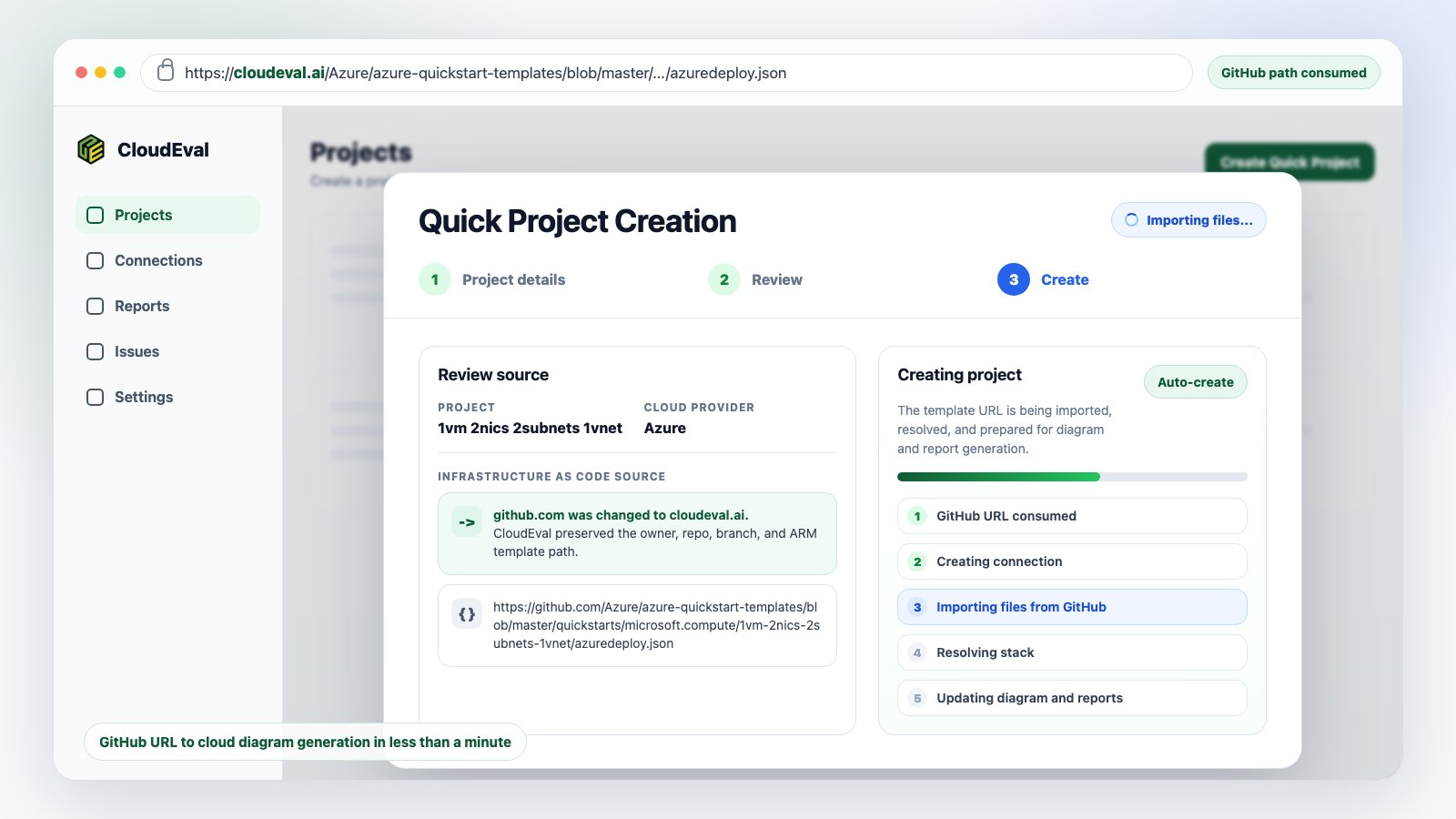
Quick Project Creation consumes the GitHub-style URL and starts importing the ARM template into a Cloudeval project.
The hook
GitHub URL to cloud diagram generation in less than a minute: keep the repository path, swap github.com for cloudeval.ai, and open a Cloudeval project with diagrams and reports ready to review.
Many infrastructure reviews begin with a repository URL. Someone sends an
Azure Quickstart template, an ARM deployment file, or a sample repository path,
and the first reviewer has to decide whether the infrastructure is worth using,
changing, or sending into production.The slow path is familiar: download the JSON, open another tool, create a
project, upload the file, wait for parsing, then start preparing diagrams and
notes for the actual review.Cloudeval removes that context switch. For supported GitHub-hosted ARM template
URLs, the repository path can become the project creation path. The shortcut is
simple: keep everything after the host exactly the same, and replace only the
domain.
Press Enter after the host swap. Cloudeval opens the GitHub-style path as a
quick project source, lets you review the import details, and then prepares the
workspace for diagrams, reports, and exportable review documentation.
Import the source
Use a GitHub-hosted ARM JSON template as the project seed.
Inspect the diagram
Turn resource declarations and dependencies into an interactive architecture view.
Run reports
Generate cost and architecture reports from the same project workspace.
The URL shortcut is intentionally simple, but Cloudeval treats the URL as an
infrastructure source rather than a web page.For the single-template flow, the source should be an ARM JSON template that
Cloudeval can read from GitHub. Common GitHub URL shapes are supported,
including blob, tree, and raw GitHub content URLs when they point to
supported template content.
The quick project flow keeps the consumed GitHub URL, creation progress, and diagram/report preparation in one visible review state.
The strongest supported path today is Azure ARM JSON.
Use a public Azure Quickstart ARM template when you want to inspect a known sample.
Use a GitHub-hosted ARM JSON file when your own repository is already public or accessible.
Use a raw GitHub content URL when you want to point directly to the template bytes.
Add a parameters URL when the template needs one and auto-detection is not enough.
If your source of truth is Bicep, compile it to ARM JSON first, then import the
generated ARM JSON file. For linked templates, nested templates, or private
repositories, use the GitHub repository sync workflow instead of a one-off URL.
When the URL shortcut is the right fit
Use it for the fastest browser path from a GitHub-hosted ARM JSON template
to a Cloudeval project. It works best when the source is a single template
and reviewers need a quick diagram/report workspace.
When to use GitHub repository sync
Use repository sync for private repositories, multi-file IaC projects,
linked templates, branch provenance, commit tracking, and push-triggered
refresh through the Cloudeval GitHub App.
When to use local upload
Use upload when the template is generated locally, not reachable by URL, or
contains source details you do not want to expose through a public GitHub URL.
After Cloudeval resolves the GitHub source, it creates a project workspace
around the infrastructure instead of treating the JSON as a throwaway upload.
1
Resolve the GitHub-style path
Cloudeval normalizes the URL and reads the supported ARM JSON content from GitHub.
2
Create the project shell
The project receives a name, provider context, source reference, and source snapshot.
3
Detect parameters
If the GitHub URL follows a recognizable pattern, Cloudeval attempts to find a matching parameters file from the same repository.
4
Parse resources and relationships
The template is interpreted as infrastructure code so resources, dependencies, and topology signals can be reviewed visually.
5
Open the workspace
Cloudeval redirects into a project workspace where source files, diagram state, report status, and review surfaces live together.
After project creation, the workspace brings files, report status, validation counts, cost, and architecture context into one place.
ARM templates can be hard to review directly because the architecture is spread
across resources, parameters, variables, nested deployments, and implicit
relationships. The generated diagram gives reviewers a shared visual model
before they get lost in raw JSON.
Architecture view
Source plus diagram
Resource details
The architecture view shows resources and relationships so reviewers can reason about topology before deployment.
A split workspace keeps the generated diagram close to the source file that produced it.
Selecting a resource keeps labels, properties, and context close to the graph.
The diagram helps answer practical review questions:
What resources are in this template?
Which services depend on each other?
Does the network shape match the architecture we expected?
Are public-facing resources obvious before deployment?
Does the template need to be split into smaller reviewable pieces?
The project becomes useful to teams when the diagram and source context are
paired with generated reports.Cloudeval reports attach review output to the same project. Depending on the
available evidence, reports can include architecture posture, cost context,
resource inventory, security and compliance signals, assumptions, warnings,
freshness, and suggested next actions.
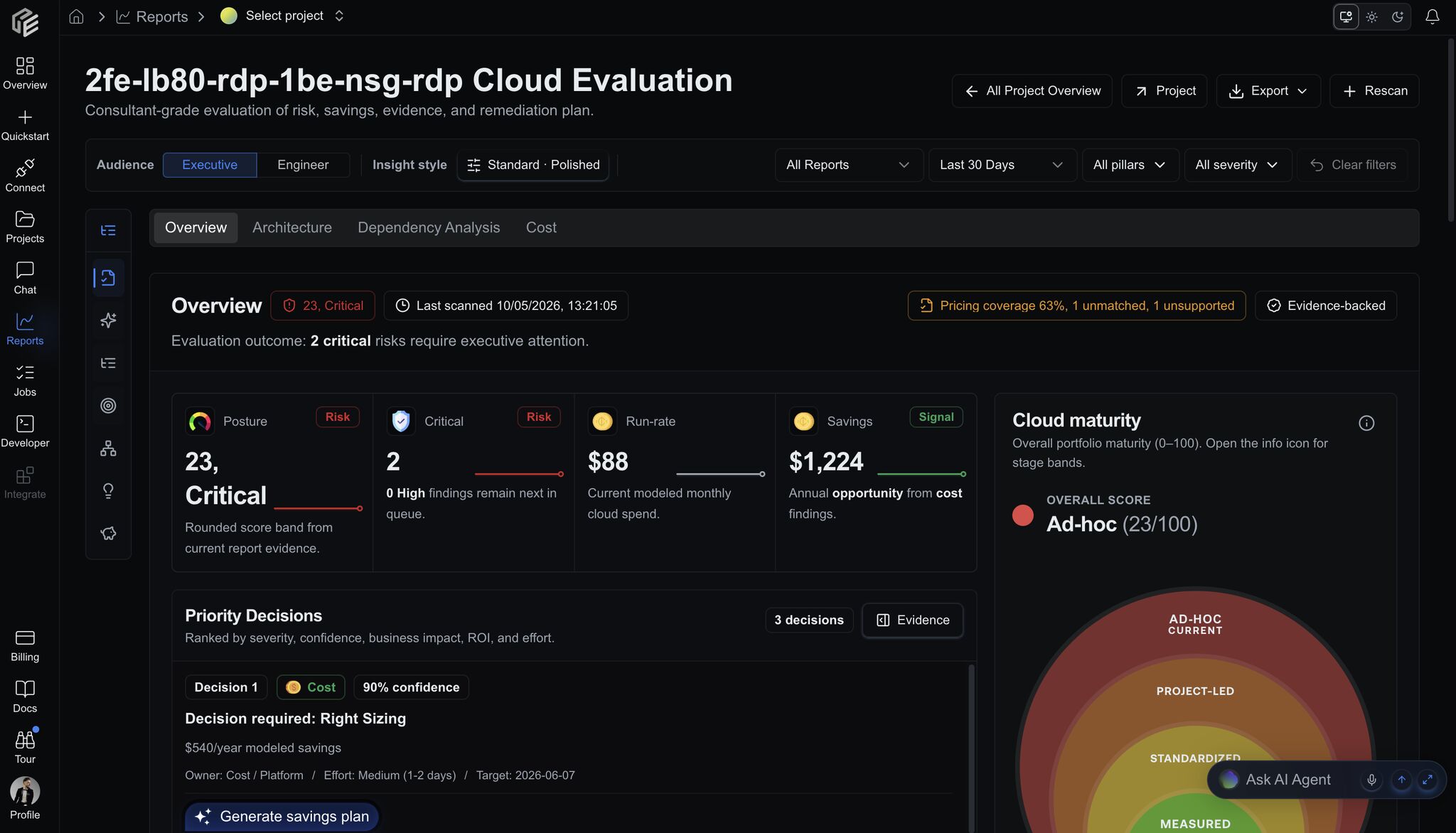
Brief
Architecture
Cost
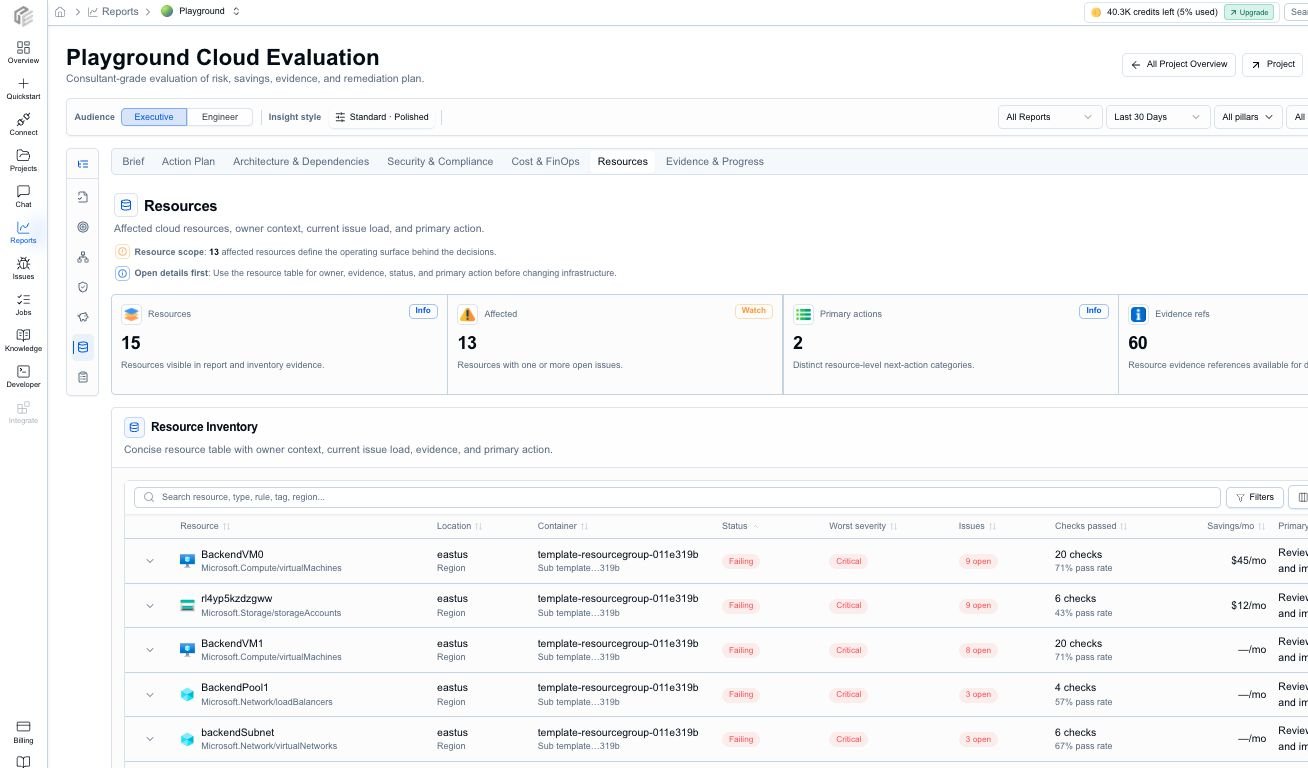
Resources
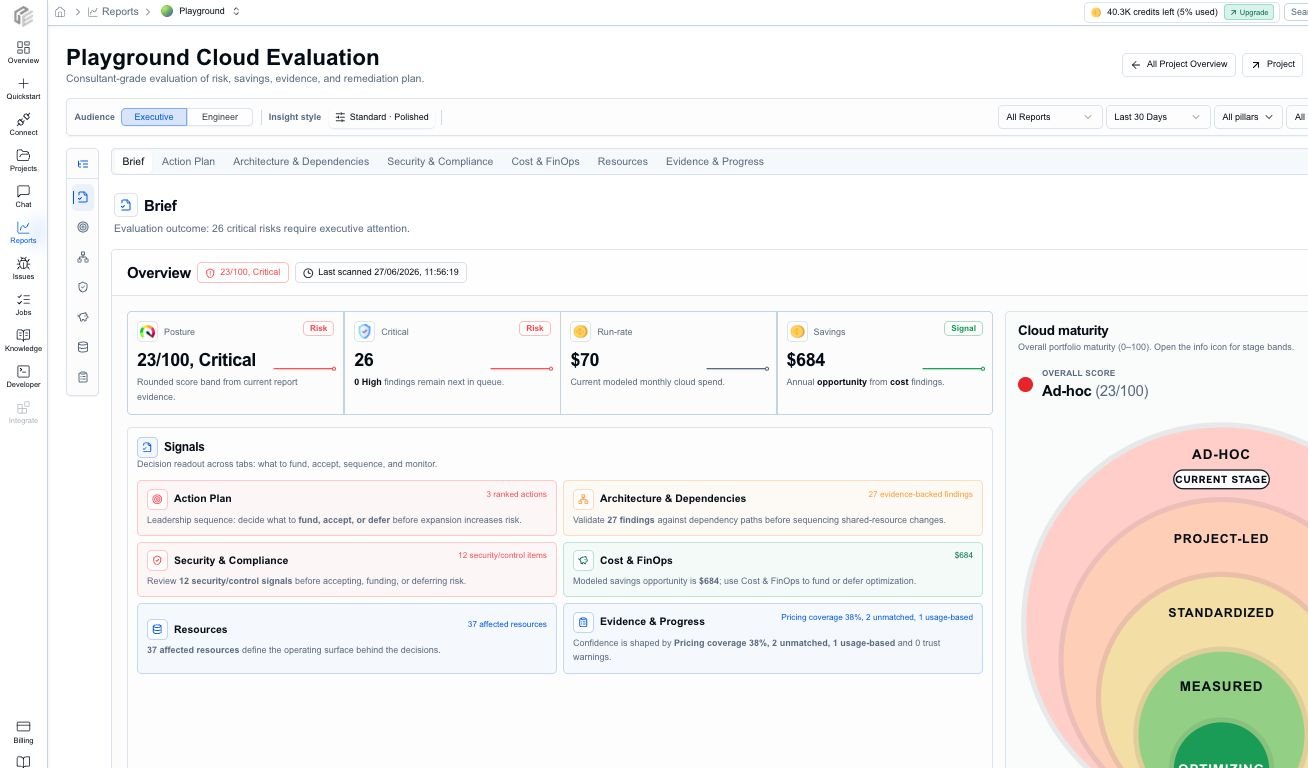
The Brief tab gives stakeholders a concise posture, cost, savings, maturity, and freshness readout.
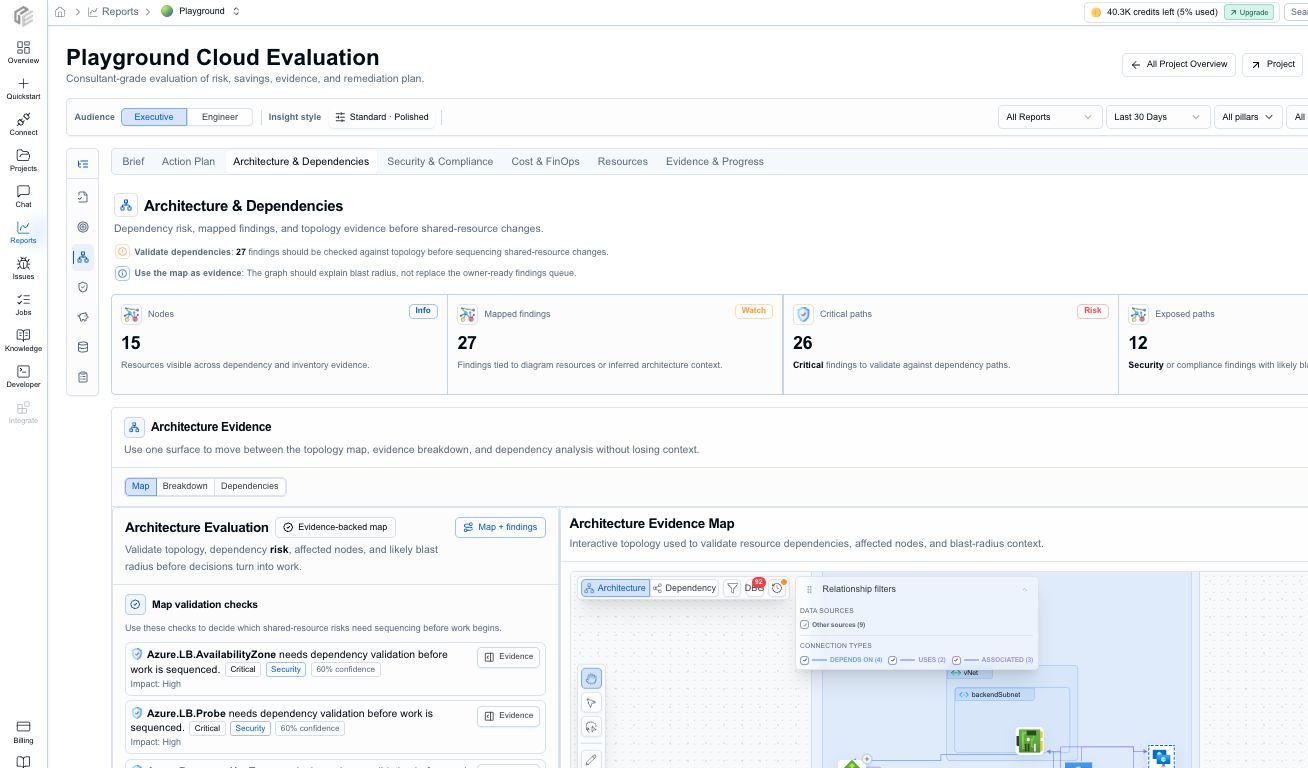
Architecture & Dependencies connects findings back to dependency context and affected resources.
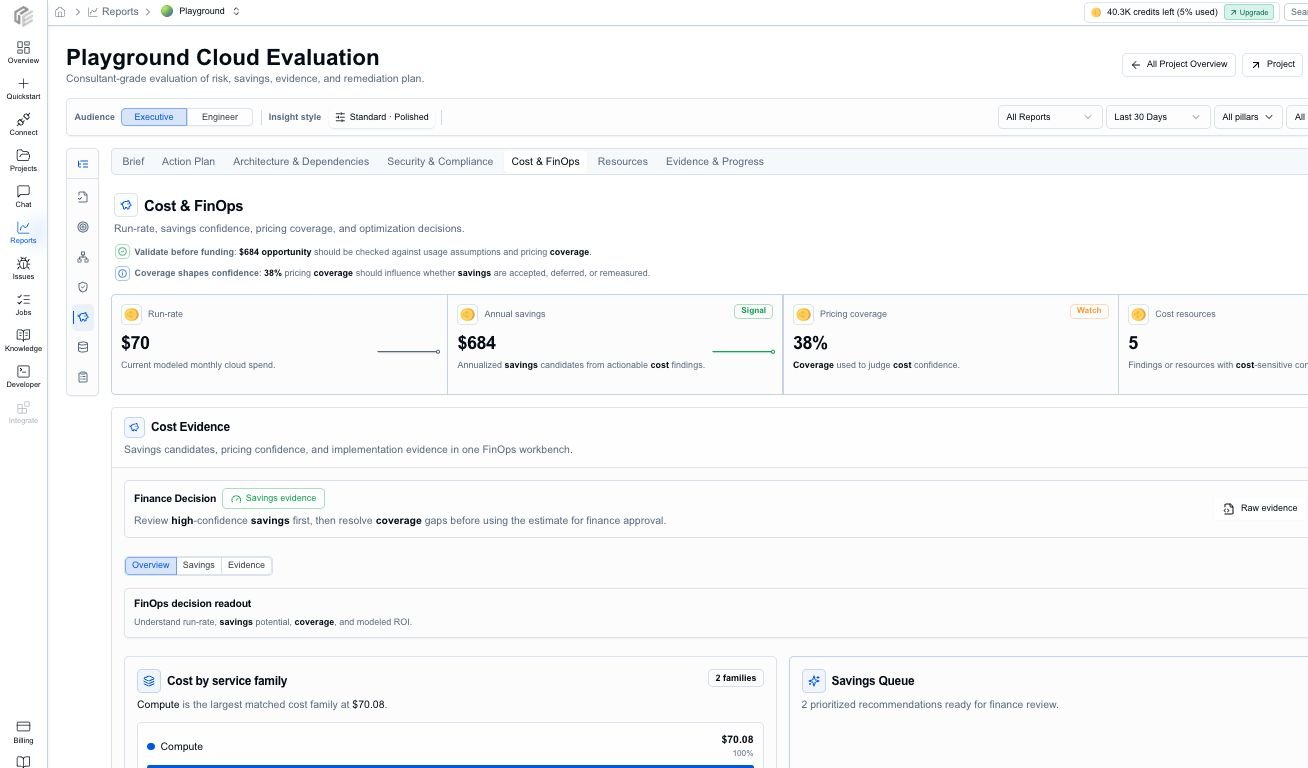
Cost & FinOps highlights run-rate context, savings, and cost-focused review signals where cost payloads are available.
The Resources tab keeps inventory, issue count, severity, cost, savings, and evidence close together.
Brief
Executive readout for posture, urgent risks, run rate, maturity, freshness, and confidence.
Action Plan
Prioritized findings with effort, owner, impact, confidence, and suggested action.
Architecture
Dependency context, affected resources, and Well-Architected review signals.
Evidence
Source artifacts, assumptions, warnings, freshness, history, and export context.
Cloudeval report overview keeps posture, critical issues, run rate, savings, maturity, and freshness visible before reviewers drill down.
That is why this flow is more than “generate a diagram from GitHub.” It is
URL-to-project, project-to-diagram, and project-to-report in one workspace.
Cloudeval does not just render a static picture. It prepares the review material
teams usually need for architecture documentation and handoff.From the imported GitHub source, the project can produce:
An interactive architecture diagram for exploration.
A source-aware workspace with the imported template and related context.
Report tabs for engineering, platform, security, and stakeholder review.
Resource-level inventory tied back to findings and affected infrastructure.
Exportable report packets for meetings, audit handoff, or internal review.
Markdown, PDF, or JSON report exports where available.
Agent-ready context for Codex, Cursor, Claude, VS Code, and MCP workflows.
Report drilldowns give reviewers a concrete place to inspect findings instead of relying on detached summary text.
That change turns a GitHub-hosted infrastructure template into a Cloudeval
project creation path. From there, Cloudeval consumes the ARM JSON, prepares
the workspace, generates the diagram, runs reports, and gives the team
exportable documentation for review.
Try the GitHub URL flow
Create a project directly from a GitHub-hosted ARM template URL.
Run reports
Generate cost and architecture reports from the project workspace.
Sync a repository
Use the Cloudeval GitHub App when the repository should remain the source of truth.