
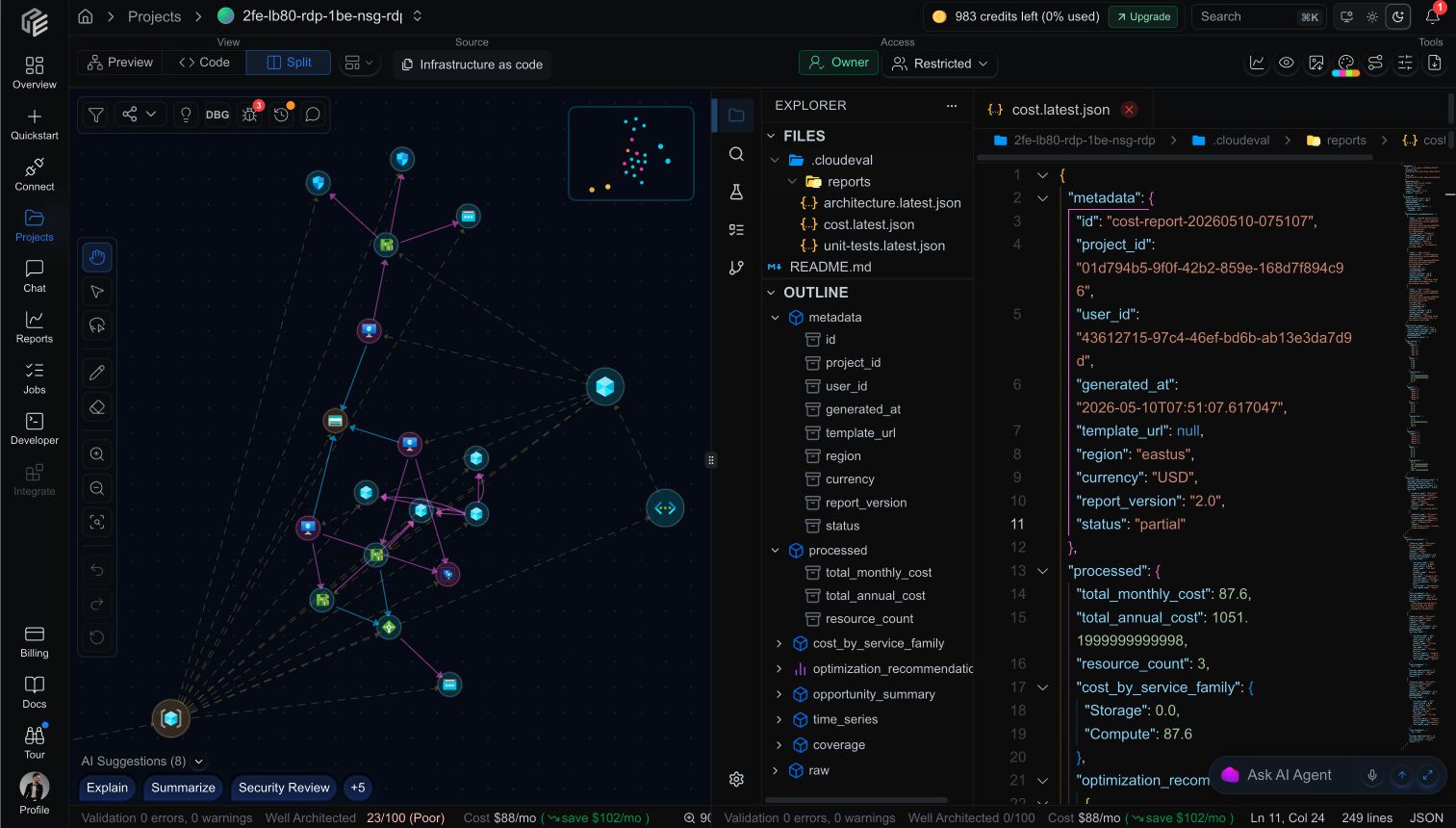
A project workspace keeps topology, source files, generated report payloads, AI help, and sharing controls in one place.
The core loop
- Add a connection. A connection tells CloudEval where to read cloud data or infrastructure code from.
- Create a project. A project becomes the working space for files, topology, report history, and sharing.
- Run reports. Cost, architecture, deployment-quality, graph, and attributed IaC evidence turn raw infrastructure into findings you can act on.
- Review the assessed scope.
Findings show what CloudEval could evaluate. Unsupported provider, format, resource, or policy areas should remain clear as
Not assessed. - Share or collaborate. Invite teammates, publish a read-only view, or embed the result elsewhere.
Connection setup paths
CloudEval currently supports these practical starting points:- Cloud sync: connect deployed Azure resources with a least-privilege service principal.
- Infrastructure as code, single template: upload or reference one ARM template and an optional parameters file.
- Infrastructure as code, workspace: import multiple ARM files, choose a visualization source in
.cloudeval/config.yaml, and let CloudEval resolve linked templates for diagrams and reports. - AWS CloudFormation beta: run static scanner evaluation for CloudFormation where the workflow is enabled.
- Terraform scanner findings: review scanner-native IaC findings for supported Terraform projects.
Why projects matter
Projects are the main unit of work in the product. They are where CloudEval stores:- linked connections
- synced or imported infrastructure data
- report outputs and latest snapshots
- share settings and collaborator access
What reports add
Reports are where CloudEval starts paying for itself.- Cost reports surface spend estimates, opportunity summaries, and trend-oriented context.
- Architecture reports summarize overall quality, Well-Architected pillar scores, and high-severity issues.
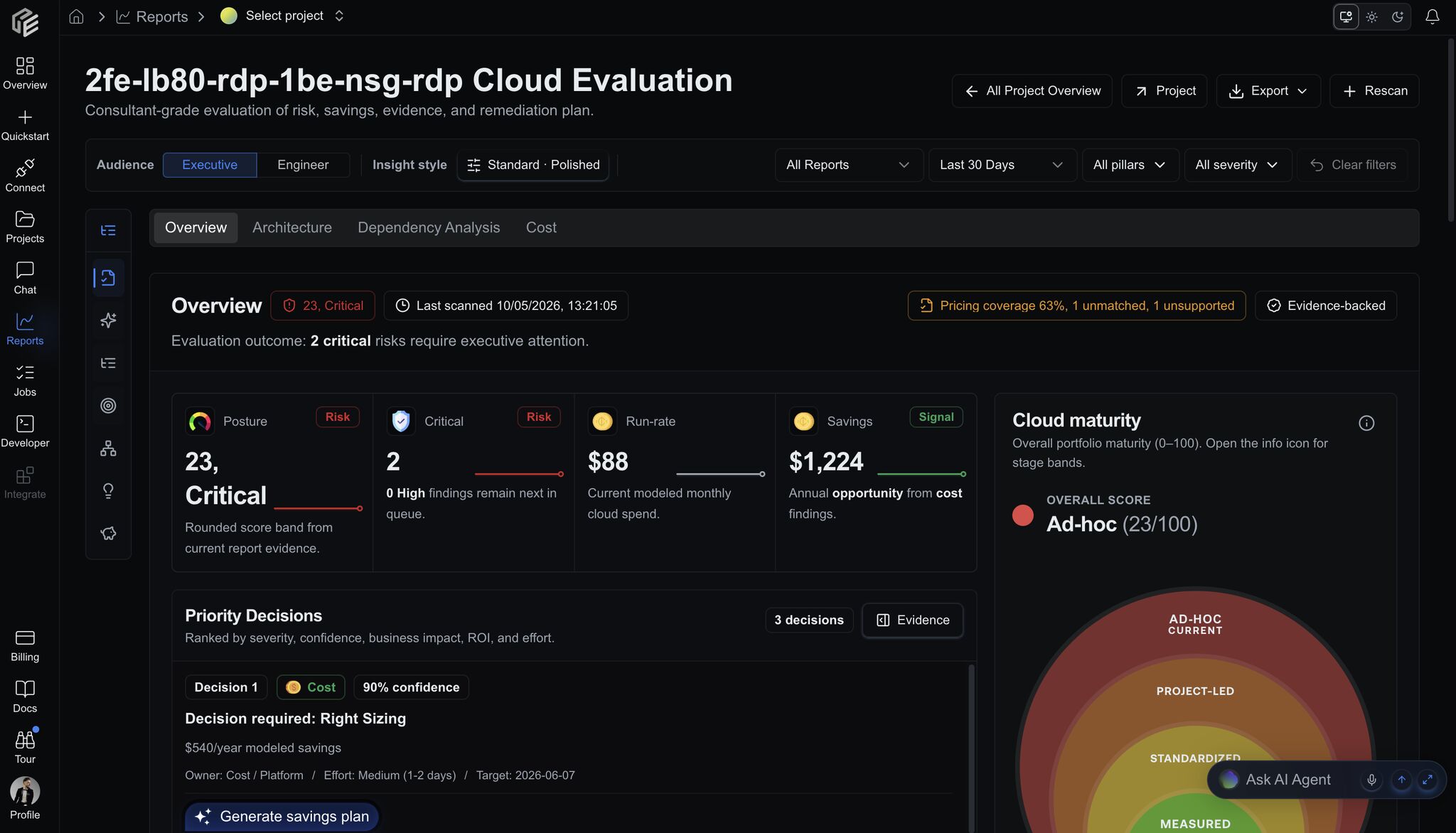
Report views summarize posture, critical risks, run rate, savings, maturity, confidence, and evidence links for stakeholder review.
Sharing model
CloudEval supports three broad ways to work with others:- Private: only people with project access can open it.
- Restricted collaboration: invite named users with editor or viewer access.
- Share links: publish a read-only link or embed view when the project is appropriate to share.
What not to assume
- A provider name in the app is not the same as full support.
- A visible UI option is not always a production-ready path.
- AWS CloudFormation beta support is not an end-to-end AWS Well-Architected assessment.
- Terraform scanner findings are not live-cloud sync.
- Share links are read-only, not an editing mode.