
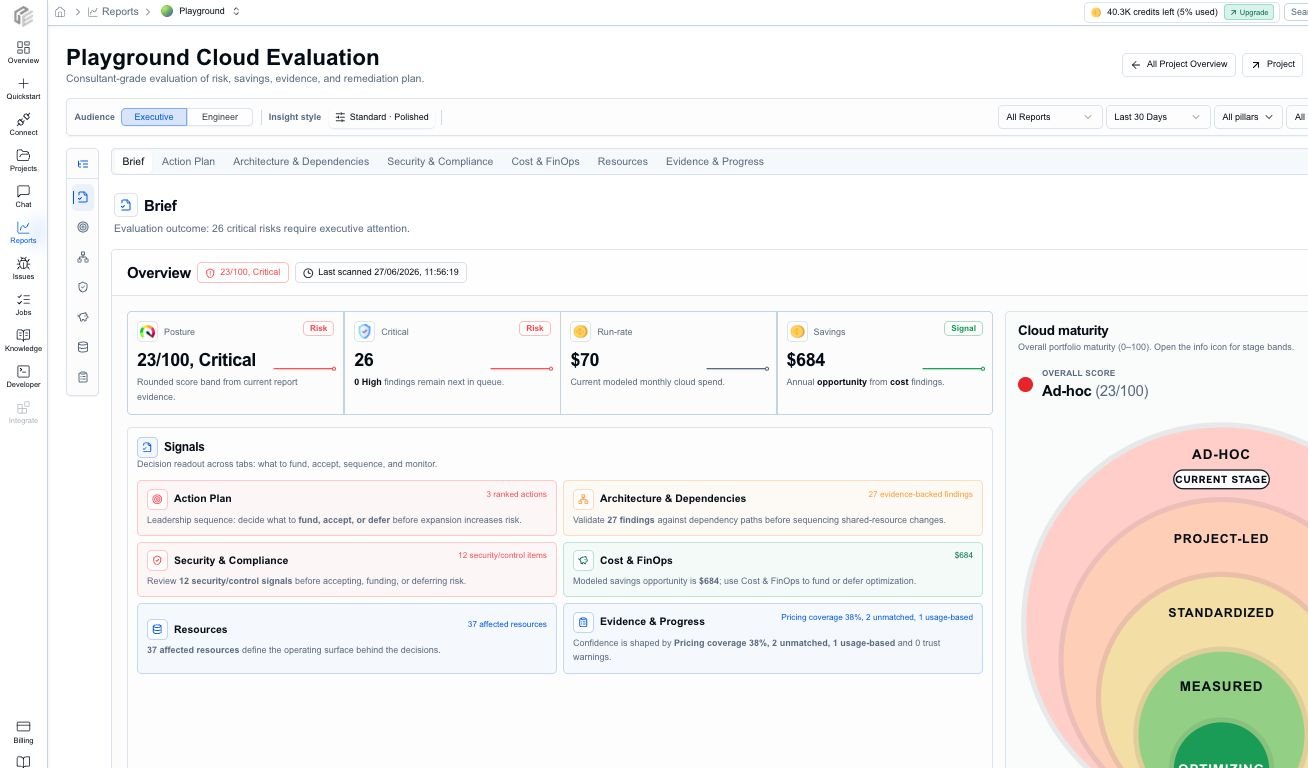
A first Cloud Evaluation report puts posture, critical issues, run rate, savings, priority decisions, maturity, and trust signals in one review surface.
Run a report
- Open Reports.
- Choose Add report or the equivalent report action from the project flow.
- Select one or more projects.
- Choose the report payloads you want:
- Cost
- Architecture
- Both
- For cost runs, confirm the region and currency.
- Start the run.
What you should expect
The generated output appears as a Cloud Evaluation report attached to the project. Depending on the payloads available for the project, it can include:- a Brief with posture, critical risk, run-rate cost, savings, maturity, freshness, and confidence
- an Action Plan with ranked findings, owner, effort, target date, confidence, business impact, and suggested action
- Architecture & Dependencies review with pillar and dependency context
- Security & Compliance review when project evidence supports it
- Cost & FinOps review with monthly, annualized, and savings context
- Resources inventory with status, severity, issue counts, cost, savings, and evidence links
- Evidence & Progress with source artifacts, warnings, assumptions, freshness, history, and trends where available
Read the first report
- Start with Brief to decide whether the project needs urgent attention, broader review, or a deeper engineering pass.
- Open Action Plan and review the highest-confidence, highest-impact items first.
- Use Architecture & Dependencies for design risk and dependency context.
- Use Security & Compliance for security-themed findings and evidence-backed control review.
- Use Cost & FinOps for run-rate, annualized cost, savings, and pricing-coverage assumptions.
- Use Resources when you need exact affected resources and primary actions.
- Use Evidence & Progress to check source artifacts, freshness, assumptions, warnings, history, and trends.
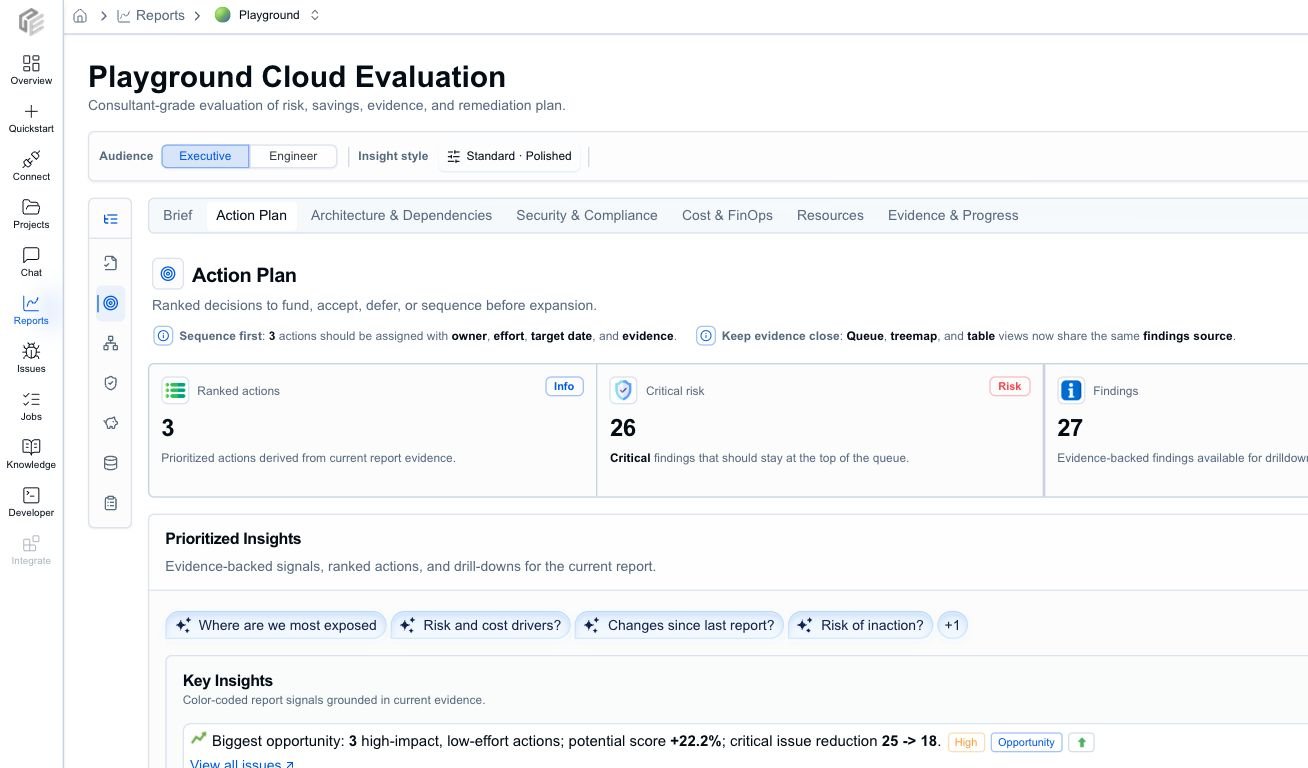
Start review from the prioritized issue list instead of scanning every finding one by one.
Choose the right audience mode
- Use Executive when you need a concise readout for budget, approval, or stakeholder alignment.
- Use Engineer when you need affected resources, evidence, and implementation detail.
Export or hand off the report
After the first review pass, use the report actions to:- export PDF when you need a meeting-ready readout
- export Markdown when you want review notes, an internal doc, or a pull-request summary
- export JSON when another tool needs structured report data
- choose brief, detailed, or evidence-focused export depth where available
- copy scoped AI context or evidence context for Codex, Claude, Cursor, VS Code, or another review tool
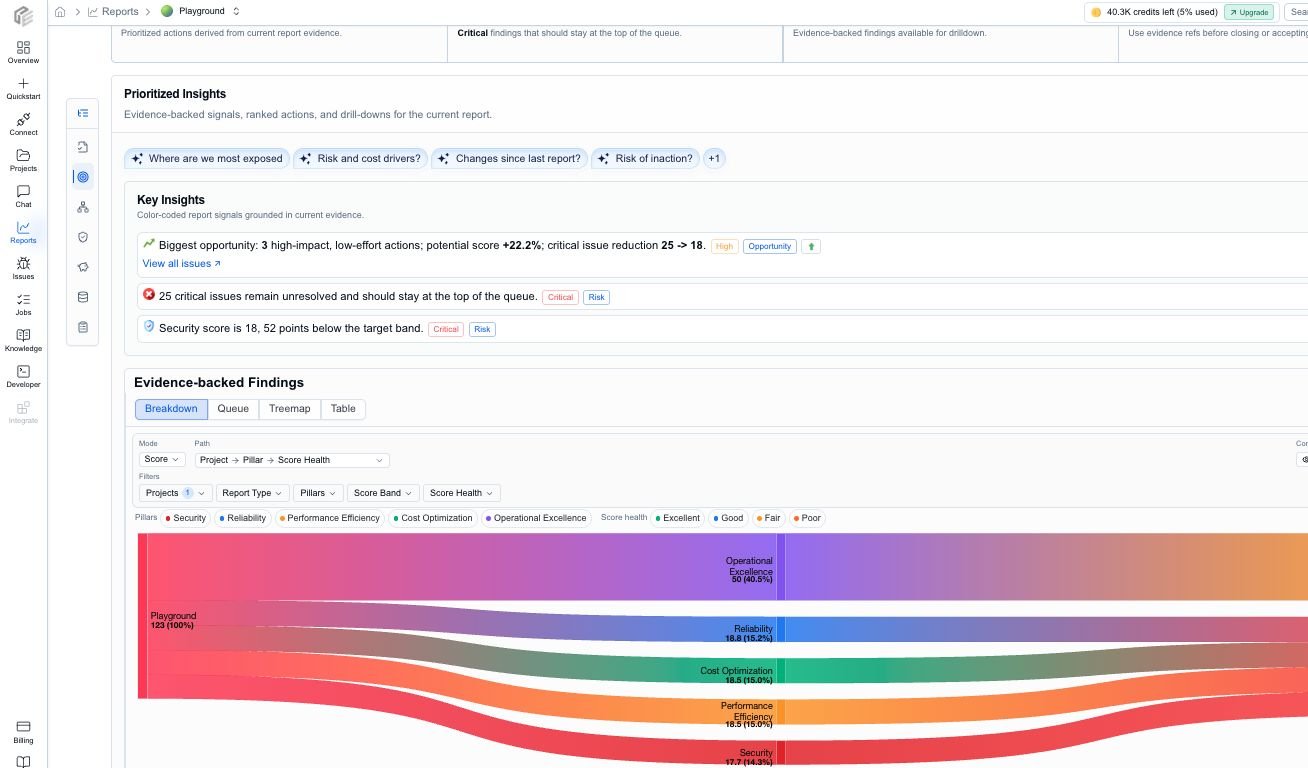
Use breakdown views when a summary number needs to be traced back through project, pillar, and score health dimensions.
Which report payload should you start with?
- Start with Both if you are new to the product.
- Start with Cost if the immediate question is spend or optimization.
- Start with Architecture if the immediate question is quality, risk, or review readiness.