
.cloudeval/config.yaml.
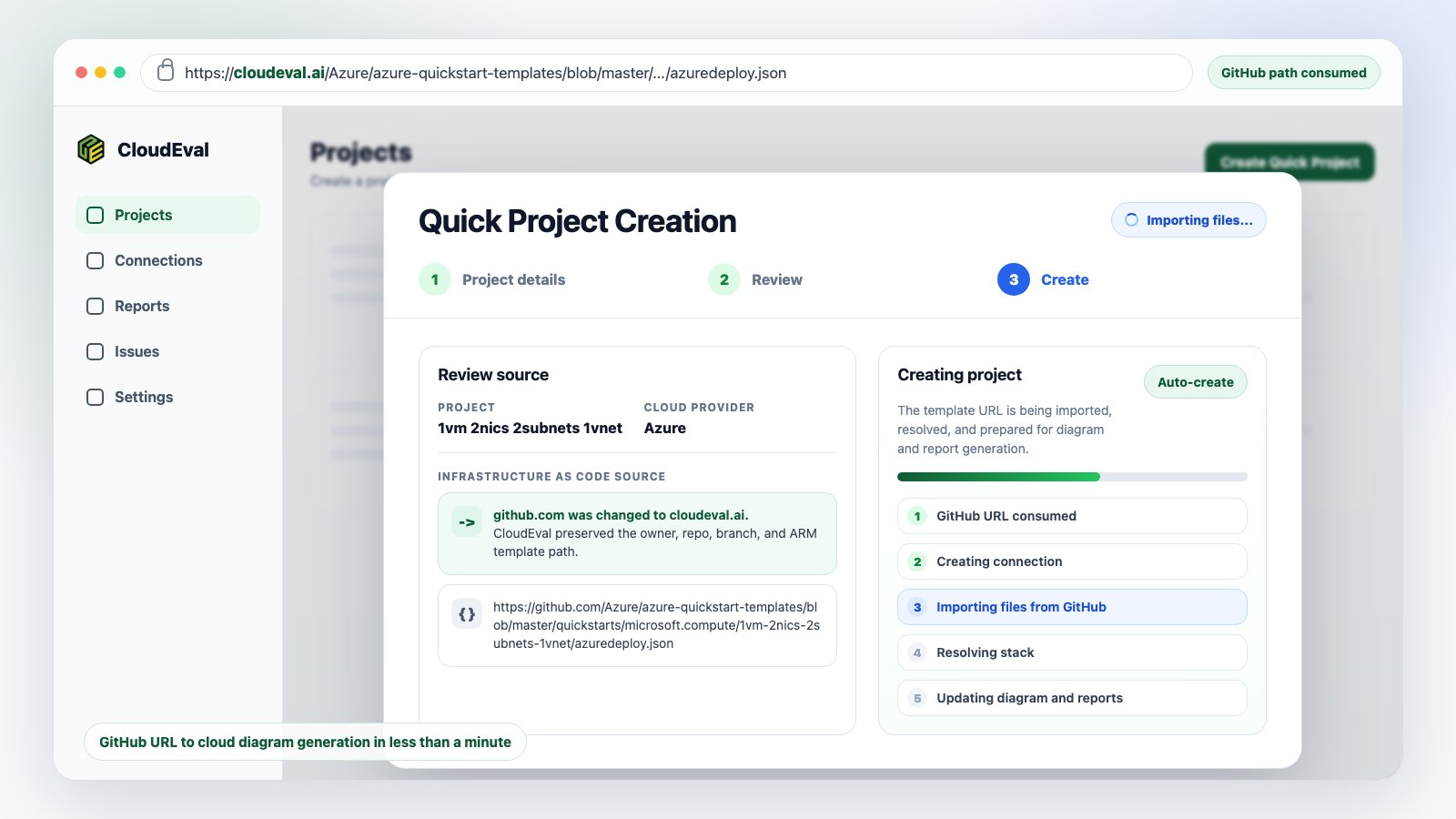
Quick project creation consumes the GitHub-style URL, preserves the source path, and starts importing files for the new CloudEval project.
Prerequisites
- A signed-in CloudEval account
- A public or accessible GitHub URL to an ARM JSON template
- A parameters file URL if the template requires one and CloudEval cannot auto-detect it
Create the project
1
Open the project creation flow
Open Projects, then choose Create project.
2
Choose a GitHub URL source
Select the template URL option and paste the GitHub URL.CloudEval accepts common GitHub URL shapes such as
blob, tree, and raw GitHub content URLs when they point to supported template content.3
Review parameter detection
When the URL points at GitHub, CloudEval tries to find a matching parameters file from the same repository when the naming pattern is recognizable.You may see states such as Looking…, Found, or Not found beside the parameters field. If the auto-detected file is not the right one, replace it with the exact parameters file URL.
4
Review and create
Confirm the project name, provider, template URL, and optional parameters URL.After you choose Review & Create, CloudEval creates the project and starts setting up the backing connection.
5
Follow the redirect
When project creation completes, CloudEval redirects you to the new project workspace.If background setup is still running, wait for the project status to finish before running reports or sharing the project.

After creation, the redirect lands in a project workspace where the template, reports, diagram, and review status live together.
When to use this instead of upload
Use GitHub URL when:- the template already has a stable repository URL
- you want teammates to recognize the source
- you want CloudEval to try parameters-file detection
- you want a browser-first flow without downloading files locally

The full project flow can also link an existing cloud connection while the project is being created.
Agent or CLI handoff
Agents and scripts can open the same browser flow with a prefilled template URL:--auto-submit only when you have already tested the exact URL and defaults you want the browser flow to use.